Your website's invisible DOM that screen-readers actually see
Web Page DOM & Accessibility Tree that gets generated out of it
January 15, 2026
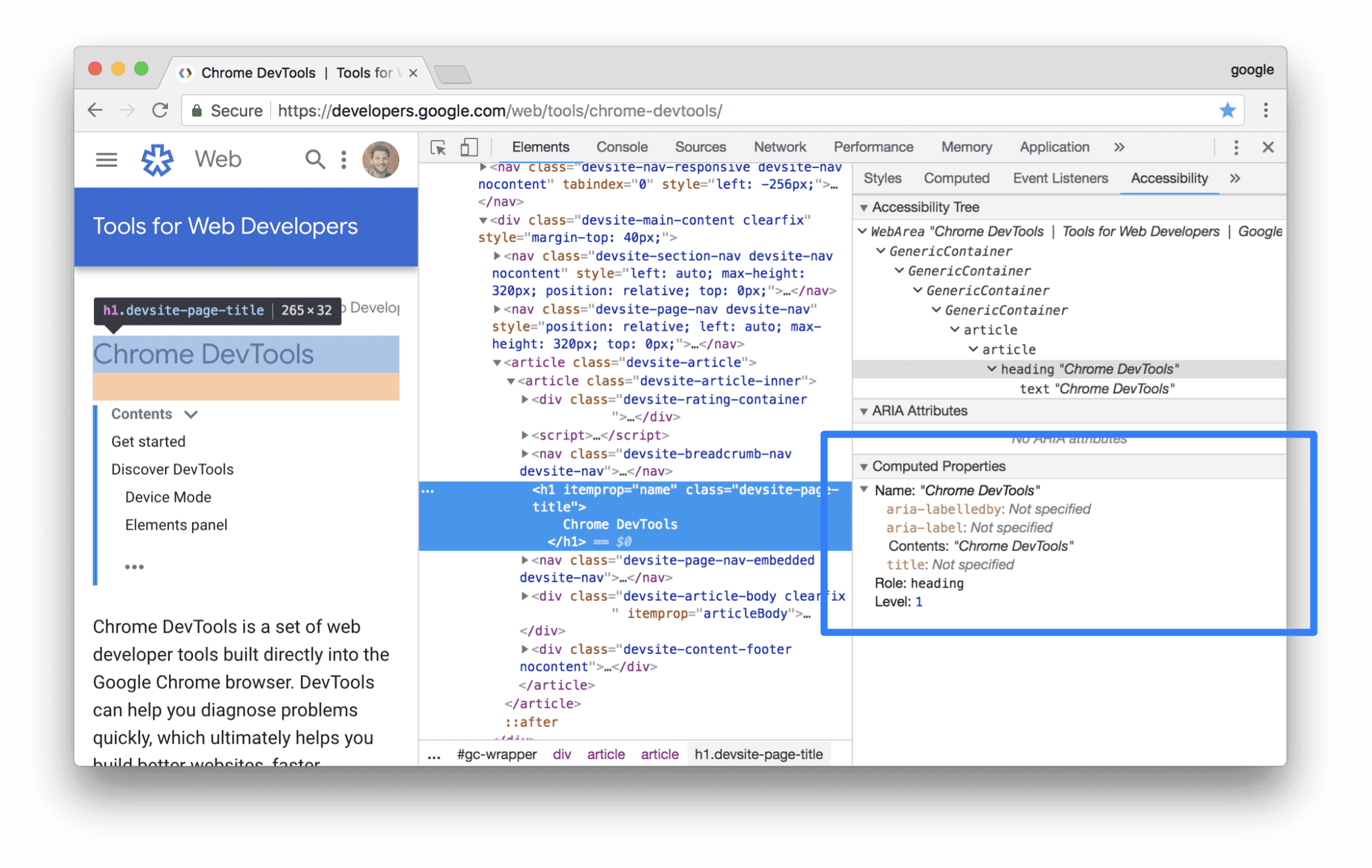
There are two versions of every webpage. You see one. Screen readers see the other.
Took me way too long to realize this.
The Thing I Thought I Knew
Used to think accessibility was about alt text on images. Add some ARIA labels here and there. Make sure buttons have descriptive text. Done.
Then someone showed me the accessibility tree and I realized I’d been thinking about this completely wrong.
Your Page Has a Shadow
When you build a webpage, browsers build two representations of it:
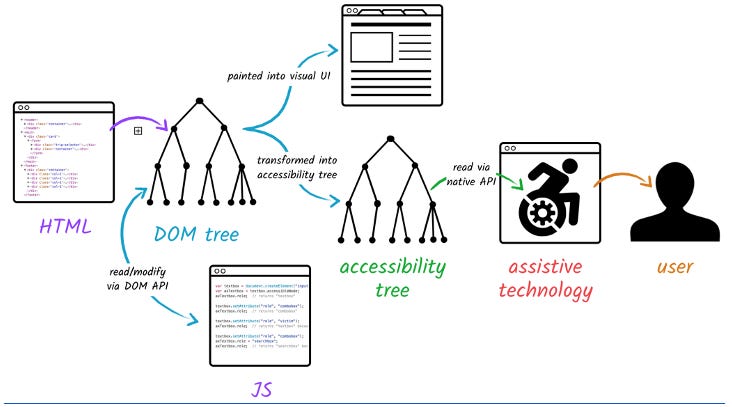
The DOM tree - This is what you see. The visual structure. Divs, spans, colors, layouts, all of it.
The accessibility tree - This is what screen readers see. A parallel structure that describes what things are and what they do, stripped of all the visual stuff.
They’re related but different. Changes to the DOM update the accessibility tree, but the accessibility tree doesn’t care about most of your CSS. It cares about semantics, roles, states, relationships.
It’s like having a transcript of a movie. Same content, totally different format.
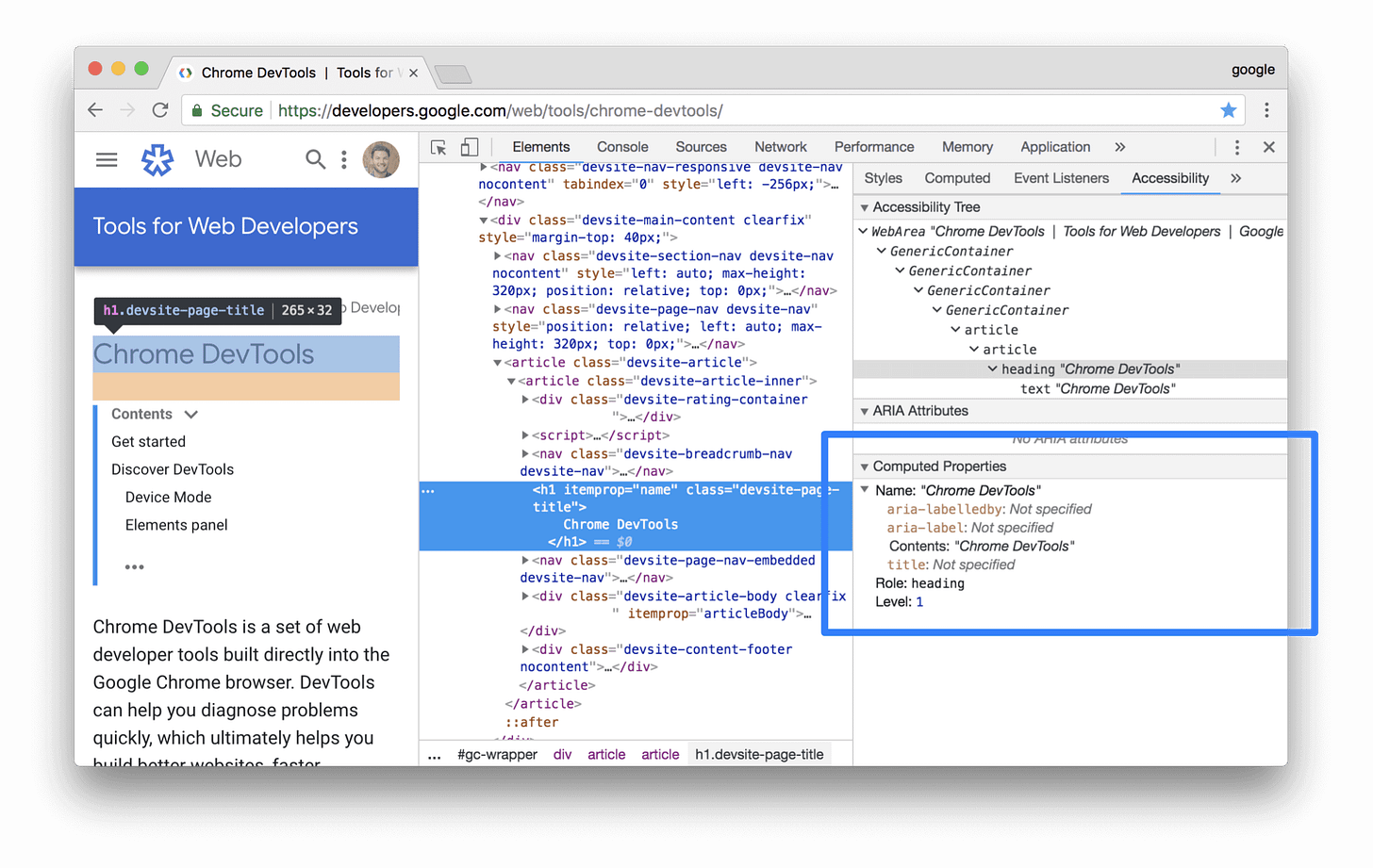
Good Example of what the DOM sees vs A11y tree sees
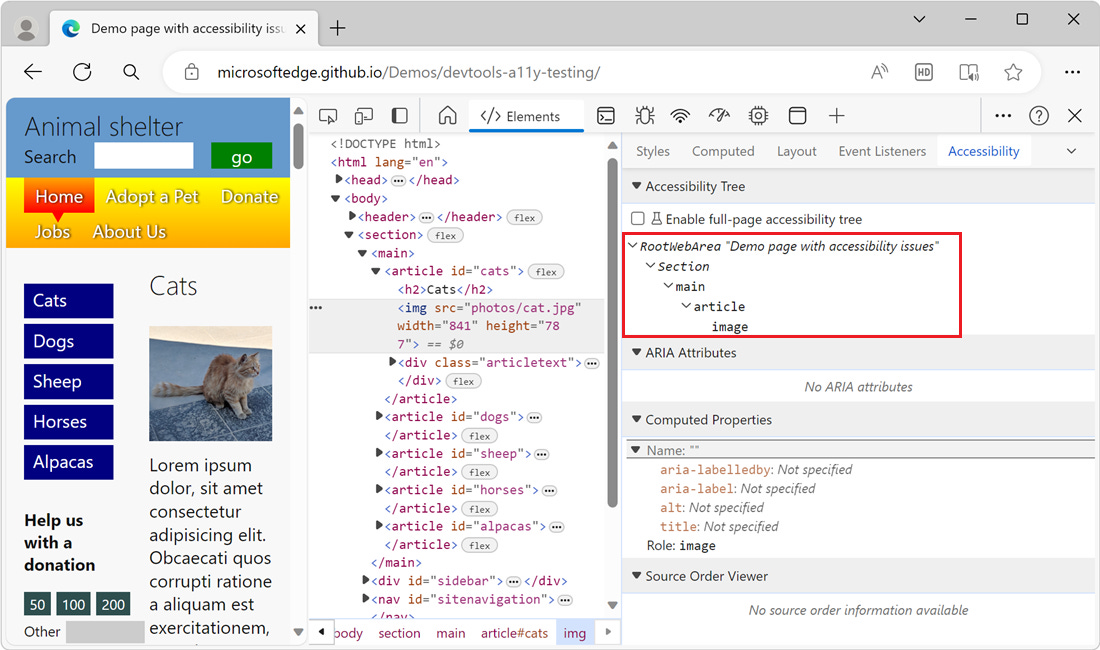
Bad example of how screen-readers would not know what to say when there’s no alt text for an image
Learn More about Accessibility Tree
How Screen Readers Actually Work
Screen readers don’t see your page like sighted users do. They navigate through the accessibility tree using keyboard commands.
They might jump from heading to heading. Or list all the links on a page. Or navigate by landmarks (navigation, main content, footer). Or tab through interactive elements.
All of that navigation depends on the accessibility tree being built correctly.
When you write semantic HTML - actual <button> elements, proper heading levels, <nav> landmarks - you’re feeding the accessibility tree good information. When you use <div> for everything, you’re giving it garbage.
The Div Button Problem
Here’s the classic example that finally made this click for me.
Version 1: The div button
<div class="button" onclick="doSomething()">\n Click me\n</div>
Looks like a button. Acts like a button when you click it. But in the accessibility tree? It’s just a generic container. Screen readers announce it as... nothing special. Just some text. No indication it’s clickable. No way to activate it with a keyboard.
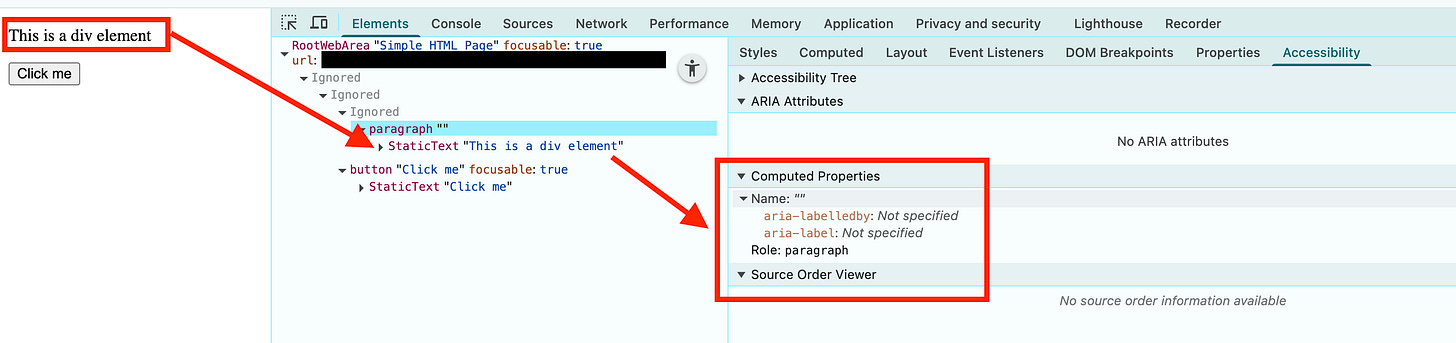
how a simple div looks in an accessibility tree
Version 2: The real button
<button onclick="doSomething()">\n Click me\n</button>
Same visual result (once you add CSS). But in the accessibility tree, this has a role of “button.” Screen readers announce “Click me, button.” Users know it’s interactive. They can activate it with Enter or Space. They can tab to it.
The difference isn’t in what sighted users see. It’s in what the accessibility tree knows.
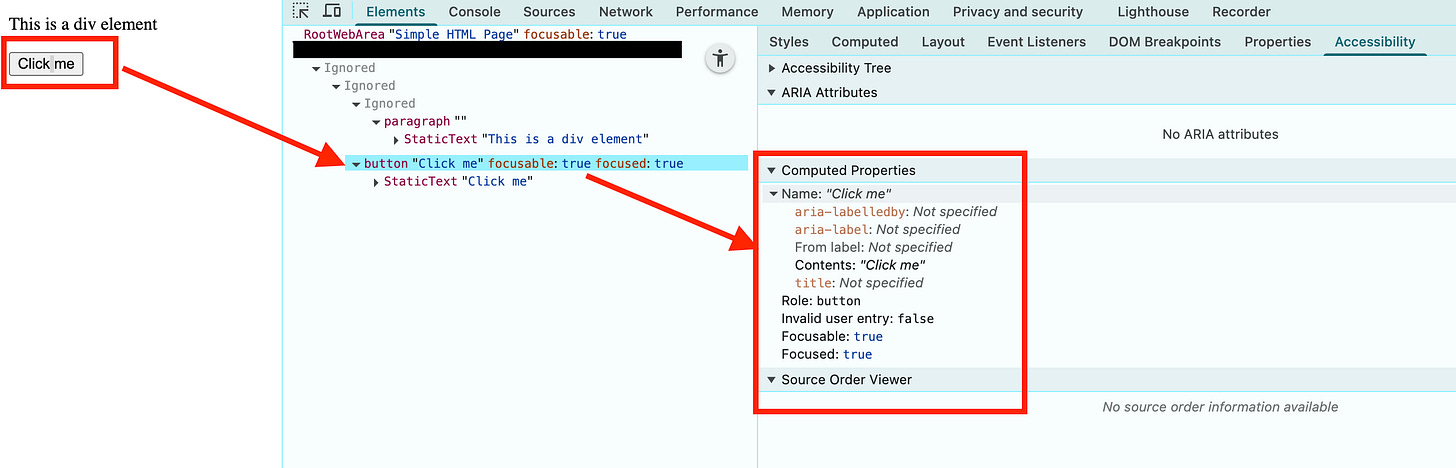
how a simple button shows up in accessibility tree
What Gets Included (And What Doesn’t)
The accessibility tree is picky about what it includes.
Gets included:
-
Semantic HTML elements (headings, buttons, links, form controls)
-
Text content
-
ARIA roles and attributes
-
Alt text on images
-
Label associations
-
Element states (checked, disabled, expanded)
Doesn’t get included:
-
Most CSS (colors, spacing, visual layouts)
-
Decorative elements (unless they have roles)
-
display: noneorvisibility: hiddenelements -
Elements with
aria-hidden="true"
This is why you can’t just visually hide things with opacity: 0 or position: absolute; left: -9999px if you want them accessible. Screen readers use the accessibility tree, not the visual rendering.
The Part About ARIA
ARIA (Accessible Rich Internet Applications) is basically a way to manually edit what goes into the accessibility tree.
Need to tell screen readers a div is actually a button? role="button". Want to indicate something’s expanded or collapsed? aria-expanded="true". Need to label something that doesn’t have visible text? aria-label="Close dialog".
But here’s the thing: ARIA is a fix for when semantic HTML isn’t enough. If you can use a real <button>, use a real <button>. ARIA comes with responsibilities - you have to handle keyboard interactions, focus management, all the stuff browsers do automatically for native elements.
There’s this saying: “No ARIA is better than bad ARIA.” Using ARIA wrong can make things less accessible than using nothing at all.
When I Finally Saw It
Chrome DevTools has this accessibility inspector. You can click on any element and see how it appears in the accessibility tree.
First time I used it on a project I’d built, I was horrified. Half my interactive elements weren’t in the tree at all. Things I thought were buttons? Generic containers. My fancy dropdown menu? Totally opaque to screen readers.
I’d been building the visual version of my site without thinking about the semantic version.
Fixing it wasn’t even that hard. Mostly it was using the right HTML elements instead of divs with click handlers. Adding proper labels. Making sure focus worked correctly. But I had to know the problem existed first.
The Testing Part
You don’t need a screen reader to check the accessibility tree. Chrome and Firefox both have inspectors for this.
Chrome: DevTools > Elements tab > Click the Accessibility pane Firefox: DevTools > Accessibility tab
Both show you the tree structure. You can see what roles elements have, what their accessible names are, whether they’re focusable. It’s like X-ray vision for semantics.
I started checking this for every major component I build. Takes two minutes. Catches problems immediately.
Real Examples That Matter
Image without alt text:
-
Visual: Image displays fine
-
Accessibility tree: Image node with no accessible name
-
Screen reader: “Image” (unhelpful)
Image with alt text:
-
Visual: Same image
-
Accessibility tree: Image node with name “Golden retriever puppy playing in grass”
-
Screen reader: “Golden retriever puppy playing in grass, image”
Form input without label:
-
Visual: Input with placeholder text
-
Accessibility tree: Text input with no name
-
Screen reader: “Text input” (user has no idea what it’s for)
Form input with proper label:
-
Visual: Same input
-
Accessibility tree: Text input with name from associated label
-
Screen reader: “Email address, text input”
Small HTML differences. Huge accessibility tree differences.
The Headings Thing
Screen reader users navigate by headings constantly. They’ll pull up a list of all headings on a page to get an overview.
If your headings are just <div class="heading-style"> with CSS that makes them look big, they don’t appear in the accessibility tree as headings. Screen readers see them as regular text.
Use actual <h1>, <h2>, <h3> tags. In the right order. Don’t skip levels (h2 to h4) just because you want a specific visual size. The accessibility tree cares about the semantic hierarchy, not the visual size.
You can always adjust the visual size with CSS. The semantic meaning is what matters.
What Actually Happens
When you load a page:
-
Browser parses your HTML into the DOM
-
Browser builds the accessibility tree from the DOM
-
Screen readers query the accessibility tree through accessibility APIs
-
Screen readers announce information from the tree to users
When you update the DOM with JavaScript:
-
Browser updates the DOM
-
Browser updates the affected parts of the accessibility tree
-
If you use
aria-liveregions, screen readers announce changes automatically -
Otherwise users notice on next navigation
It’s all happening in parallel. The accessibility tree is always there, always updating, whether you’re thinking about it or not.
Why I Care Now
About 15% of people have some kind of disability. Not all of them use screen readers, but many rely on the accessibility tree in some way - screen readers, browser extensions, assistive technologies.
Building a visual website that ignoring the accessibility tree means you’re building for 85% of users and hoping the other 15% figure it out somehow.
Once I understood the accessibility tree exists, I couldn’t un-know it. Now when I write HTML, I’m thinking about both versions. The one people see and the one screen readers see.
Doesn’t take longer. Just takes awareness.
The Practical Takeaway
You don’t need to become an accessibility expert overnight. Start here:
-
Use semantic HTML - Buttons are buttons, headings are headings, navigation is nav
-
Check the accessibility tree - Chrome DevTools, two clicks, shows you what’s actually there
-
Add alt text to images - Describe what’s in the image, not “image of”
-
Label your form inputs - Use
<label>elements, not just placeholder text -
Test keyboard navigation - Can you use your site with just Tab and Enter?
That covers most of the basics. The fancy ARIA stuff can wait.
The Honest Part
I still mess this up sometimes. Built a custom select dropdown last month and forgot to add proper ARIA attributes. Worked fine visually. Accessibility tree was a mess.
Caught it in review because someone actually checked. Fixed it in about 20 minutes. But I should’ve caught it myself.
It’s a muscle you build. The more you check, the more you start building it right the first time.
One More Thing
The accessibility tree isn’t just for screen readers. Browser extensions, automation tools, testing frameworks - lots of things use it. Voice control software. Search engines (they prefer semantic HTML). Reading mode in browsers.
Building a good accessibility tree isn’t charity. It’s building a more robust, semantic, machine-readable version of your site. It makes everything better.
Which, honestly, is the best kind of feature to build.
Thanks for reading Under The Hood! Subscribe for free to receive new posts and support my work.