Why Input Latency Symptoms Can Mislead Developers: A Deep Dive Into the Real Causes
Understanding how event handling, rendering, and JavaScript execution conspire to create confusing input lag
October 26, 2026
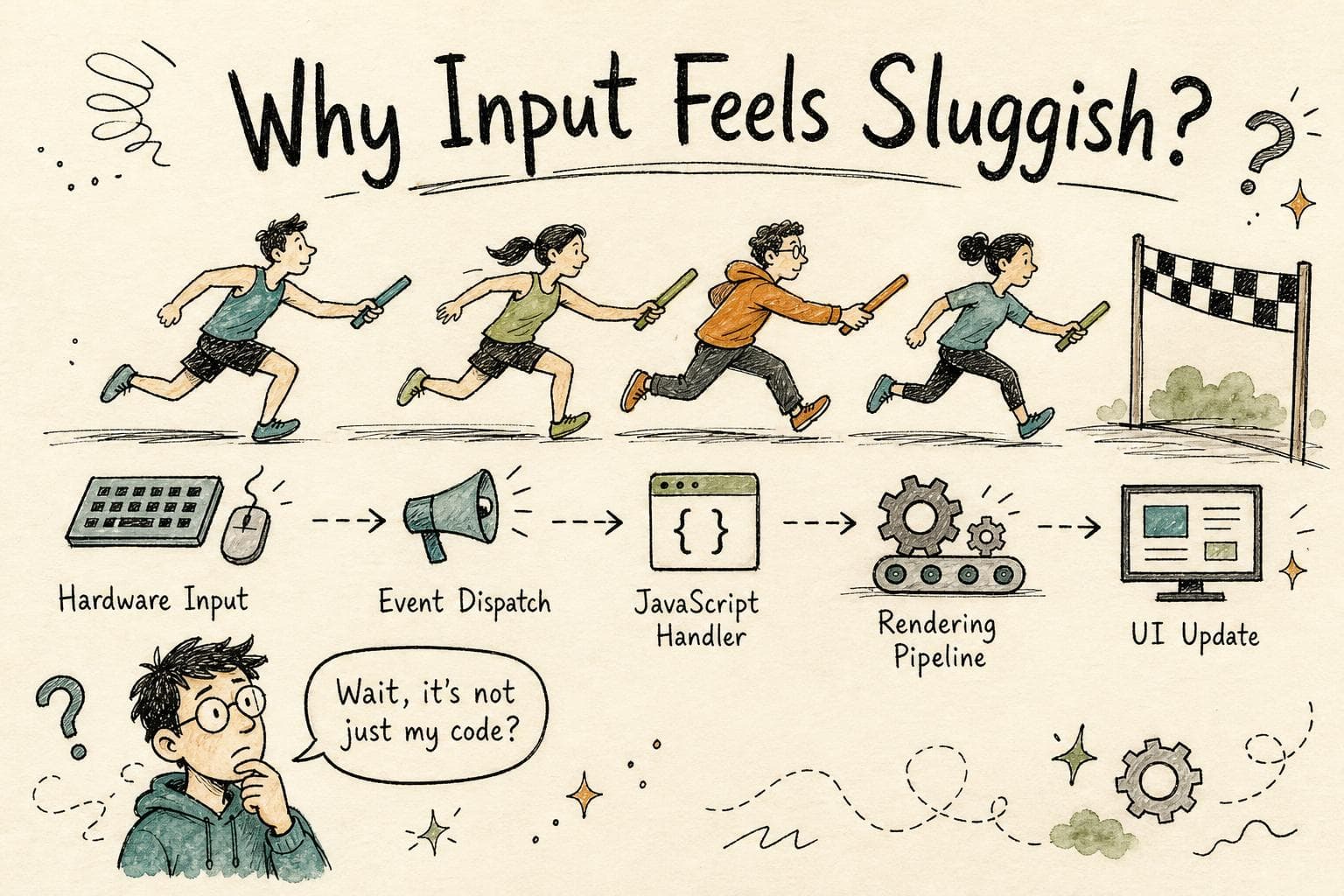
You’re clicking a button or typing in a form, and the UI feels sluggish. Maybe the button highlight or input response lags behind your finger or mouse by a noticeable fraction of a second. You open your profiler, see some long frames, and assume the culprit is obvious: your JavaScript is blocking the main thread. But wait, digging deeper, the cause isn’t always what it seems.
I ran into this exact confusion debugging a web app where users complained about input lag. Profiling showed long tasks, but the input event timestamps didn’t line up with when UI updates actually happened. The symptoms pointed fingers at JavaScript execution, but it turned out the real bottleneck was a mix of event handling delays, rendering pipeline quirks, and misunderstood profiling signals.
Let’s walk through how browsers handle input events, rendering, and JavaScript work together , and why input latency symptoms can mislead you.
The Familiar Symptom: Input Feels Sluggish
Imagine this: you press a key or tap a button. The app should respond immediately , highlight the button, update text, whatever. Instead, something feels off:
- The UI update happens noticeably after your input.
- Sometimes the delay is consistent; other times, it’s jittery.
- Profiling shows long JavaScript tasks around input, but it’s unclear if that’s cause or effect.
You might think the fix is straightforward: optimize your JS handlers or throttle expensive logic. But what if the event isn’t even reaching your code on time? Or the rendering pipeline itself is introducing delays?
Input Events Aren’t Instant: The Browser Event Pipeline
Browsers don’t just fire an event the moment your finger touches the screen. Input events travel through multiple phases:
- Raw Input Processing: The OS and browser receive hardware signals , touch, mouse, keyboard.
- Event Coalescing: For pointer and touch events, browsers may batch or coalesce multiple events into one to avoid flooding your app.
- Event Dispatch: The browser fires DOM events on appropriate targets.
- Event Handling: Your JavaScript listeners run.
This pipeline can add subtle delays:
- On mobile, touch events can be delayed by about 300ms historically to detect double taps (though this is largely fixed with pointer events).
- Coalescing means you might get fewer events but some representing multiple physical inputs, causing perceived latency.
- If the main thread is busy, event callbacks queue up and run late.
So even before your handler runs, the event might already be delayed.
Rendering Pipeline Adds Another Layer of Delay
After your JavaScript updates state or DOM, the browser proceeds through rendering steps:
- Style Recalculation: Determine affected CSS styles.
- Layout: Compute positions and sizes.
- Paint: Draw pixels.
- Composite: Combine layers for final display.
These steps happen asynchronously after your JS task finishes. If your JS blocks the main thread for too long, rendering waits. But even if JS is quick, heavy style/layout/paint jobs can delay frame updates.
Profiling Can Lie: Understanding Timeline Marks
When you look at DevTools performance traces, several marks confuse newcomers:
- Event Timing: Shows when an event fired and how long its handler took.
- Frames: Show when the browser painted new content.
- Long Tasks: Blocks that keep the main thread busy.
It’s tempting to blame the longest task overlapping the input event, but remember:
- Your event handler may run late due to earlier tasks.
- Rendering work triggered by your handler runs after JS finishes.
- Input latency includes both event delay and render delay.
For example, a long style recalculation after your handler ends can cause the visible UI update to lag even if JS was fast.
JavaScript Execution Isn’t the Whole Story
In one recent bug, I found a React app where input felt delayed. Profiling showed 50ms event handlers and 100ms layout recalculations after. Initially, I thought throttling or debouncing input handlers would help.
But the real gain came from splitting heavy CSS selectors to speed layout and adding will-change to trigger compositing layers. The rendering work was the actual bottleneck, not JS.
What You Can Do to Pinpoint the Real Bottleneck
Start with the profiler timeline:
- Check when the input event fired vs. when the handler ran. If there’s a gap, the main thread was busy.
- Look at style/layout/paint work after the handler. Long layout means your DOM or CSS is expensive.
- Use Event Timing API (
event.timeStampandperformance.now()) to measure event latency from user input.
Try isolating:
- Run with minimal JavaScript handlers to see if input latency persists.
- Simplify CSS and DOM to measure layout cost.
- Use Chrome’s Rendering panel to visualize paint and composite layers.
Common Pitfalls That Mislead Developers
- Blaming expensive JS exclusively: Sometimes JS is fast, but layout or paint is slow.
- Ignoring event coalescing or pointer event quirks: These can cause input events to batch, delaying your handler.
- Misreading profiler timelines: Overlapping long tasks don’t always cause visible lag.
- Neglecting browser optimizations and heuristics: Browsers may delay rendering or event firing to optimize battery or CPU usage.
Wrapping Up
Input latency feels simple until you peek under the hood. It’s a dance between hardware input, event processing, JavaScript execution, and rendering steps. Each layer can add delay, and symptoms that look like JS slowness may really be rendering or event dispatch subtleties.
Next time input feels slow, don’t just blame your handlers. Look closely at event timing, rendering workload, and how the browser pipeline orchestrates everything. With that understanding, you’ll find the real bottlenecks faster and fix input lag for good.