What Your Browser Does When You Change a CSS Property (It's Busy)
It's the Browser Rendering Pipeline
January 13, 2026
I changed a button’s background color last week. Took me one line of CSS. My browser had to make about fifteen decisions in three milliseconds.
Felt a little bad about it, honestly.
The Thing You See
You write some CSS. The thing on screen changes. Seems instant. Seems simple.
It’s not.
Your browser’s doing a surprising amount of work every time you update styles. And understanding what that work is - that’s the difference between smooth animations and the kind of jank that makes users think their computer’s dying.
Meet the Three Operations Your Browser Really Doesn’t Want to Do
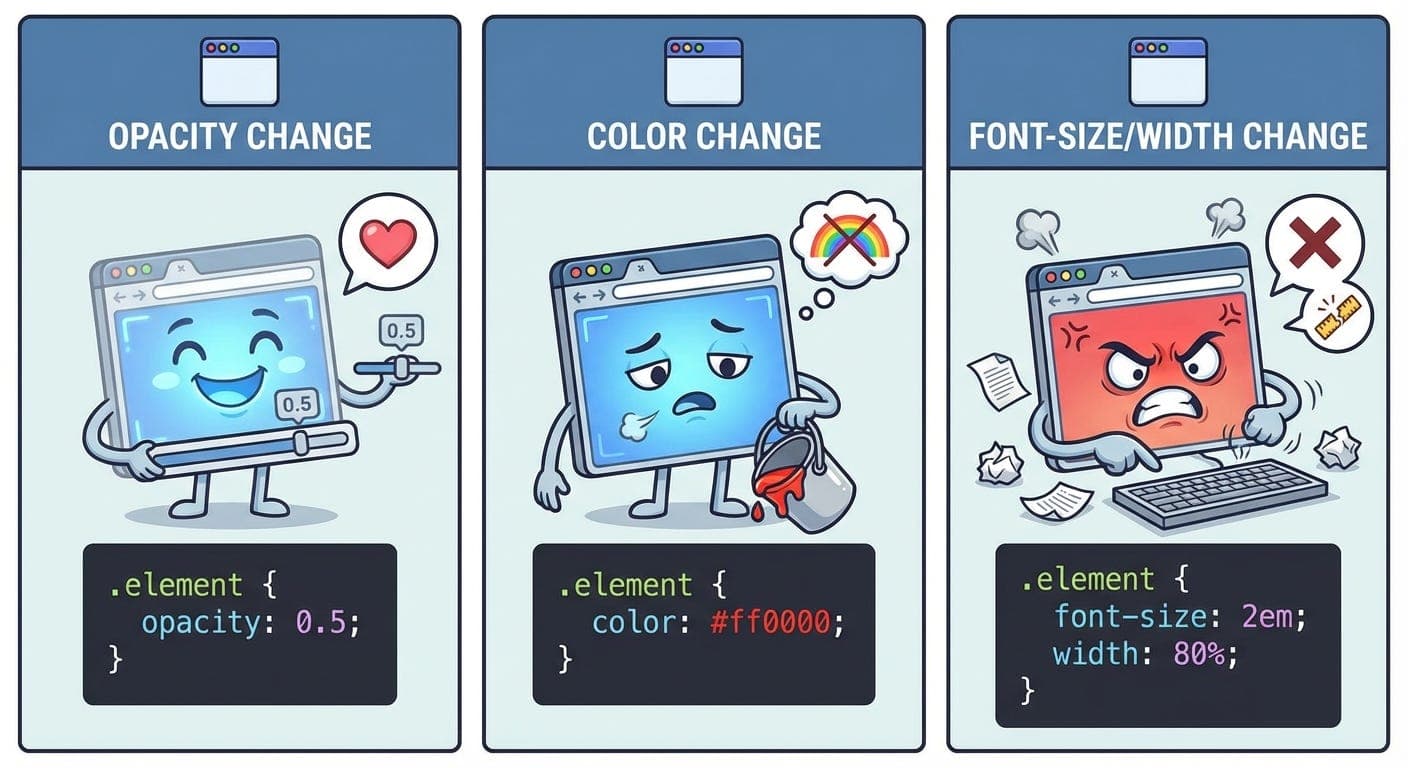
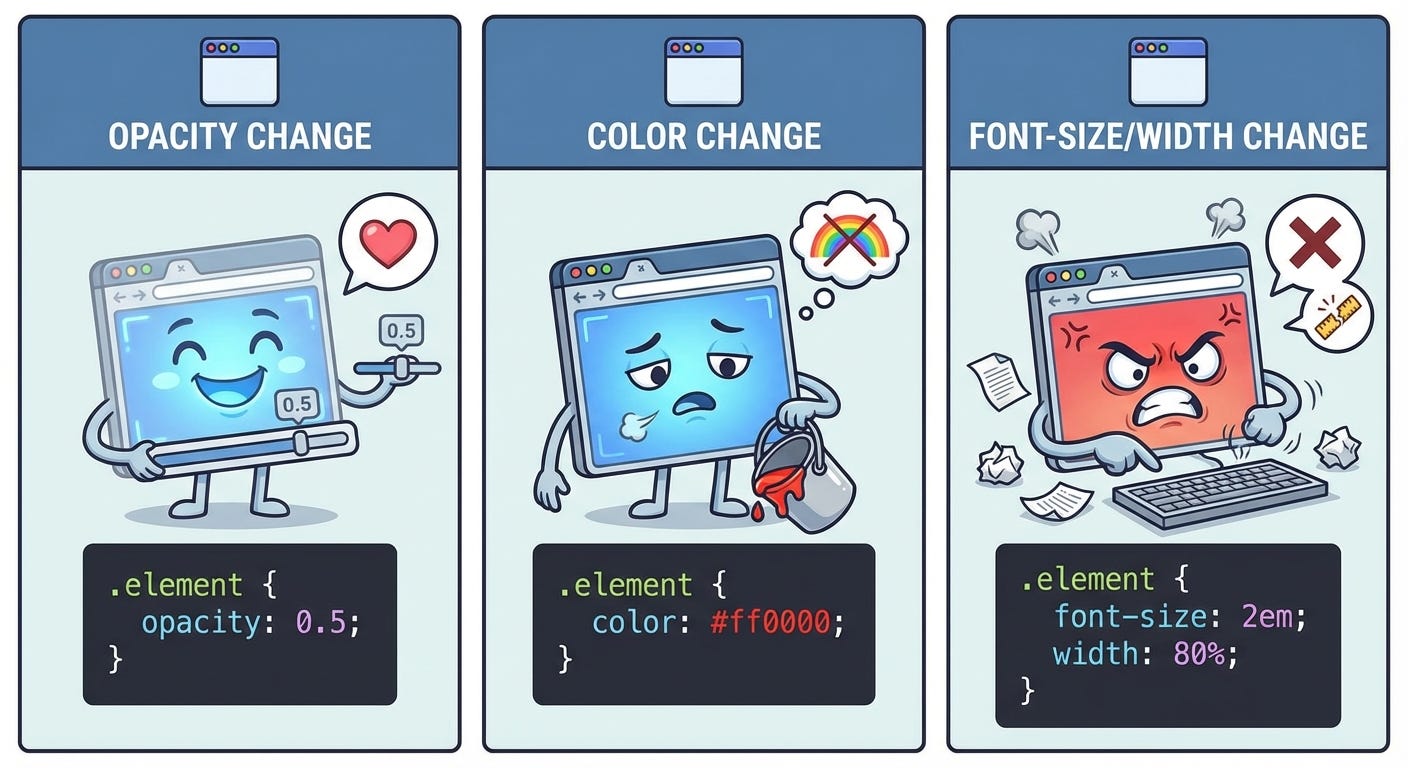
Every time styles change, your browser picks from three options. In order of “how much your browser wishes you hadn’t done that”:
1. Composite (The Easy One)
This is your browser’s favorite. You changed something it can handle on the GPU without recalculating anything. A transform? An opacity change? Perfect. The browser takes the existing layers, moves them around or fades them, and calls it a day.
Fast. Efficient. Your browser sends you a little thank-you note (it doesn’t, but it would if it could).
2. Paint (The Medium One)
Okay, now things are more annoying. You changed a color. Or a shadow. Or a background. The layout’s still the same - nothing moved, nothing got bigger - but the browser needs to repaint the affected pixels.
It’s like having a coloring book that’s already drawn. You’re just filling in different colors. Takes time, but at least you’re not redrawing the whole thing.
3. Layout, aka Reflow (The Expensive One)
This is the one that makes browsers cry. You changed something that affects size or position. Width. Height. Margin. Padding. Font size.
Now the browser has to recalculate everything. “Okay, this div got wider, so this other div needs to move, which means this container needs to be taller, which means... oh god, this affects everything.”
It’s like playing Jenga in reverse. Change one piece and suddenly you’re recalculating the entire tower.
Why This Matters (The Part Where I Learned This the Hard Way)
I once built an animation that moved elements across the screen. Used top and left properties because that’s what made sense to me. Worked fine on my fancy MacBook.
Tested it on an older laptop. Looked like a slideshow. Choppy as hell.
Turns out top and left trigger layout recalculations. Every. Single. Frame. My animation was asking the browser to rebuild the layout 60 times per second. The older laptop just... couldn’t.
Switched to transform: translateX() instead. Same visual effect. Used compositing instead of layout. Suddenly buttery smooth even on the old laptop.
Same animation. Different CSS property. Completely different performance.
The Part Where I Show You Examples
Here’s what triggers what:
Composite only (fast, your browser loves you):
-
transform -
opacity -
That’s basically it
Paint (medium, browser’s slightly annoyed):
-
color -
background-color -
box-shadow -
border-radius -
Anything visual that doesn’t change size/position
Layout/Reflow (expensive, browser’s having a bad time):
-
width,height -
margin,padding -
top,left,right,bottom -
font-size -
Basically anything that changes where things are or how much space they take up
There’s a website called CSS Triggers that lists every property (I keep it bookmarked). Useful when you’re wondering why your animation feels sluggish.
The Thing About Layers
Your browser doesn’t actually render your entire page as one flat image. It builds layers - kind of like Photoshop layers, if that helps.
Some elements get their own layer automatically. Fixed position elements. Things with transforms. Elements with certain CSS properties that hint “hey, I’m probably going to animate.”
When something on its own layer changes, the browser can update just that layer. Doesn’t have to touch the rest. This is why transform and opacity are fast - they can be handled entirely on their own layer.
You can force an element onto its own layer with will-change: transform. Tells the browser “heads up, I’m going to animate this, maybe prepare for it.”
But don’t overuse it. Layers take memory. Make everything a layer and you’ve just traded jank for memory problems. It’s a balance.
When It Goes Wrong
Ever scrolled a page and everything felt stuttery? Probably a layout thrashing problem.
Layout thrashing is when you repeatedly trigger reflows in quick succession. Read a property that needs layout info (like offsetHeight), change something that affects layout, read another property, change something else... your browser’s recalculating layout over and over.
It’s like asking someone to measure a room, then moving all the furniture, then asking them to measure again, then moving more furniture. Eventually they’re going to get frustrated.
The fix is usually batching - read all your measurements, then make all your changes. Let the browser do one reflow instead of twenty.
The Developer Tools Thing
Chrome DevTools has a rendering tab that shows you when repaints happen. You can literally see green rectangles flash on screen every time something repaints.
First time I turned it on, my page looked like a Christmas tree. Everything was flashing. Realized I was triggering way more repaints than necessary.
Sometimes you don’t know you have a problem until you can see it.
What I Actually Do With This Information
Day to day? I’m not thinking about the rendering pipeline for every line of CSS. That would be exhausting.
But when I’m building animations, I reach for transform and opacity first. When something feels janky, I check what properties I’m changing. When I’m doing heavy DOM manipulation, I think about batching.
It’s like knowing how a car engine works. You don’t think about it while driving, but when something sounds wrong, you have context for why.
The Honest Part
Sometimes you can’t avoid expensive operations. Sometimes you need to change width. Sometimes layout is unavoidable.
That’s fine. The browser’s pretty good at handling it. Modern browsers are fast.
But knowing what’s expensive helps you make informed decisions. Maybe that animation can use transform instead of width. Maybe that scroll effect can be debounced. Maybe that constant measurement can happen once instead of every frame.
Small changes. Big performance difference.
One More Thing
All of this happens in milliseconds. Layout, paint, composite - your browser’s doing this so fast you don’t notice when it works right.
But you definitely notice when it doesn’t.
That’s what makes frontend interesting. You’re not just writing code that works. You’re writing code that works fast enough that users don’t think about it. And that requires understanding what your code is actually asking the browser to do.
Which, as it turns out, is a lot more than just “change this color.”
Thanks for reading Under The Hood! Subscribe for free to receive new posts and support my work.