What Happens During a Browser Tab Crash
Browser Edition
February 26, 2026
Had a tab freeze completely. Spinning beachball. Couldn’t click anything.
Switched to another tab. That one worked fine.
Closed the frozen tab. Browser kept running like nothing happened.
Ten years ago, that would’ve crashed the entire browser.
The Thing That Changed Everything
Early browsers were single-process. One program running everything. All your tabs, all your windows, everything.
One tab hits a bad script? Whole browser crashes. Lose all your tabs. Lose your work. Restart and hope you can recover.
Firefox and Chrome changed this around 2008-2010. Multi-process architecture.
Now each tab runs in its own process. One tab crashes, the others don’t care.
What Actually Happens When a Tab Crashes
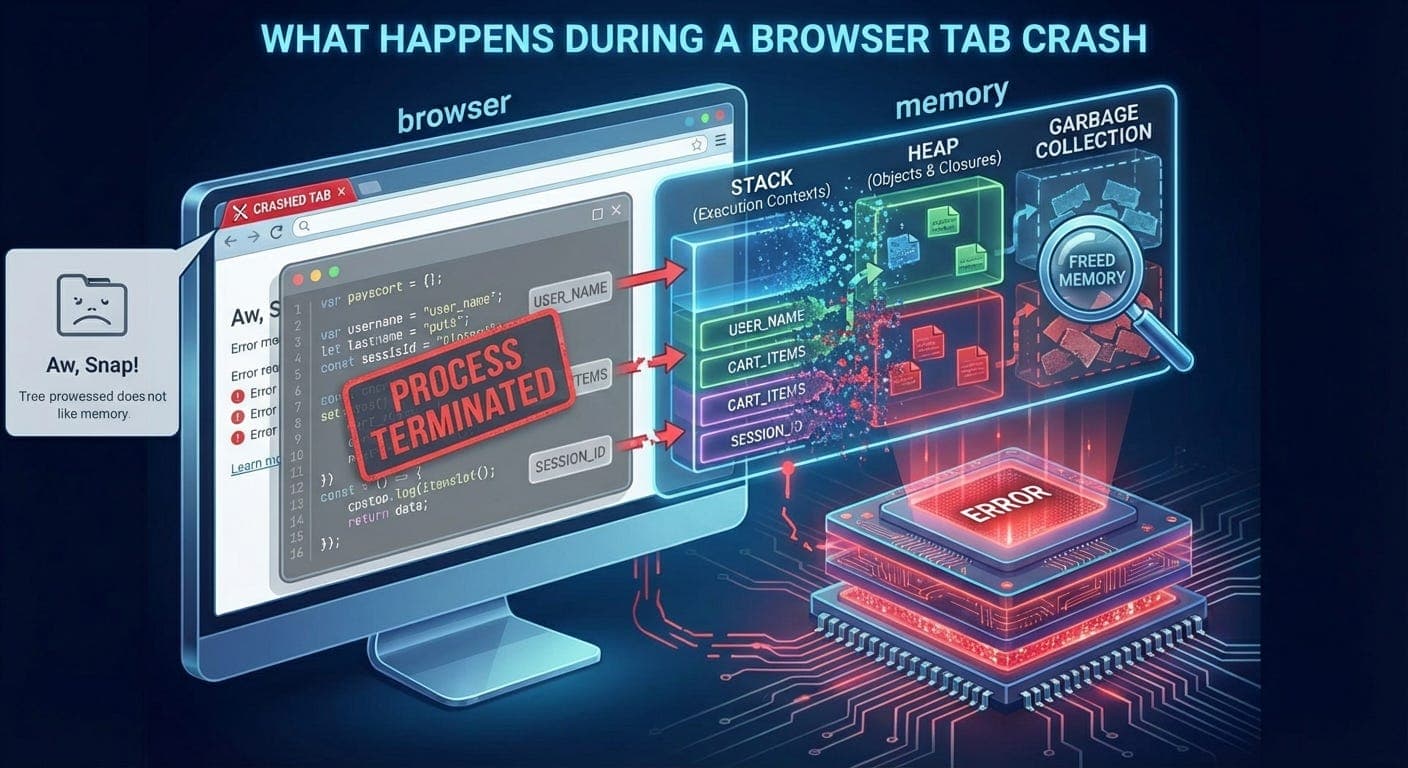
Opened a page with infinite loop JavaScript. Tab became unresponsive. Chrome shows “Aw, Snap!” error page.
But here’s what actually happened:
-
Renderer process hits 100% CPU
-
Browser process notices it’s unresponsive
-
Browser kills the renderer process
-
Frees up memory
-
Shows error page
-
Other tabs keep working
The browser process (parent) killed the misbehaving tab process (child). Clean shutdown. Other processes unaffected.
Chrome’s Process Model
Chrome doesn’t just have one process. It has several types:
-
Browser Process (one)
Main process. Manages windows, tabs, chrome UI. Handles network requests. Controls other processes. -
Renderer Processes (many)
One per tab (roughly). Runs webpage JavaScript. Handles rendering. Sandboxed for security. -
GPU Process (one)
Hardware acceleration. Handles graphics operations. Shared across tabs. -
Utility Processes (several)
Audio, network service, storage, various background tasks.
Open Task Manager (Shift+Esc in Chrome). See all the processes.
Why Each Tab Gets Its Own Process
-
Security and stability.
-
Stability: One tab crashes, doesn’t take down others. Process isolation.
-
Security: Malicious code in one tab can’t access data from another tab. Each renderer is sandboxed.
-
-
Resource management: Can limit memory and CPU per tab. Kill resource-hogging tabs without affecting others.
Had 50 tabs open once. One started eating 2GB of RAM. Chrome flagged it. I could kill just that tab. Freed the memory. Other 49 tabs fine.
Site Isolation (The Extra Layer)
Chrome takes it further. Not just process per tab. Process per site.
Visit facebook.com in one tab, twitter.com (x.com now??) in another? Different processes.
Have facebook.com iframe on a page? That iframe runs in a separate process from the main page.
This is site isolation. Started rolling out in 2018 after Spectre/Meltdown vulnerabilities.
Why Site Isolation Matters
Before site isolation, one renderer could theoretically access data from another origin in the same process.
Spectre attacks could leak data across origins if they shared a process.
Site isolation fixes this. Each site origin gets its own process. Physical memory separation. Can’t leak across processes easily.
Cost: More memory usage. But way more secure.
The Process Management Problem
Every process uses memory. Chrome on my laptop right now:
-
Browser Process: 150MB
-
Renderer (Tab 1): 200MB
-
Renderer (Tab 2): 180MB
-
Renderer (Tab 3): 220MB
-
GPU Process: 100MB
20 tabs open? That’s 20+ processes. Gigabytes of RAM.
Chrome tries to be smart about it. If you have limited memory, it might share renderers between tabs. Performance vs resource tradeoff.
When Tabs Share Processes
Chrome doesn’t always give each tab its own process. Sometimes tabs share:
-
Small devices: Limited memory? Chrome consolidates processes.
-
Same site: Multiple tabs from same site might share a renderer (before you interact with them).
-
Resource limits: Hit process limit? Chrome starts sharing.
But with site isolation, cross-site content always gets separate processes.
The Memory Management Thing
Each process has its own memory space. Can’t access another process’s memory.
When a tab crashes, the OS reclaims that process’s memory immediately. Clean separation.
In single-process browsers, memory leaks in one tab affected the whole browser. Now memory leaks are contained to that process.
Close the tab, process dies, memory freed.
What a Crash Looks Like From Inside
Worked on a Chrome extension. Had a bug. Infinite recursion. Stack overflow. Renderer process crashed.
Chrome detected it. Showed “Aw, Snap!” page. Offered to reload.
Browser process logged the crash. Uploaded crash report (if I had that enabled). Continued running.
Other tabs had no idea it happened.
The Browser Process Is Critical
One process can’t fail: the browser process.
If that crashes, everything dies. It’s the parent of all other processes.
Chrome engineers work hard to keep the browser process stable. Most risky code runs in renderer processes where crashes are contained.
GPU Process Crashes
GPU process can crash too. Usually from driver issues or hardware problems.
Had this happen. Screen flickered. All tabs went blank for a second. Then recovered.
Chrome detected GPU process crash, restarted it, told all renderers to reconnect.
Temporary visual glitch. But everything kept working.
The Extension Process Model
Extensions also run in separate processes.
Bad extension crashes? Doesn’t kill your tabs. Just the extension process.
Chrome shows a notification: “Extension X has crashed.” Option to restart it.
Extensions are isolated from tabs and from each other. Same containment strategy.
Viewing All The Processes
Chrome Task Manager shows everything.
Shift+Esc (or Chrome menu > More tools > Task Manager)
See every tab, every extension, every internal process, memory usage for each, CPU usage for each, network activity.
Can kill individual processes from there. Kill a tab without closing it. Just terminates the renderer. Tab shows “Aw, Snap!” but stays open.
The Downside: Memory Usage
Multi-process architecture uses more memory than single-process.
Overhead per process: process initialization, duplicate code in memory, communication between processes.
Firefox went multi-process too (Electrolysis, 2016). But uses fewer processes than Chrome. Different tradeoffs.
How Processes Communicate
Processes can’t share memory directly. They communicate via IPC (Inter-Process Communication).
Browser process to renderer: “Load this URL”
Renderer to browser: “User clicked this link”
IPC adds latency. But it’s fast. And the security benefits are worth it.
The Sandbox
Renderer processes run in a sandbox. Restricted permissions. Can’t access arbitrary files, open network connections directly, access system resources, or talk to other processes (except via IPC).
Malicious code in a renderer can’t do much. Even if it escapes JavaScript VM, it’s still sandboxed at OS level.
When I Really Noticed This
Had a webpage with bad WebGL code. Crashed the GPU process.
All my tabs briefly showed blank rectangles. Thought my graphics card died.
Two seconds later, everything came back. GPU process restarted. Tabs reconnected.
That’s the multi-process architecture doing its job. Crash, recover, keep going.
The Android/iOS Difference
Mobile browsers have different constraints.
-
Android Chrome: Still multi-process, but more conservative. Fewer processes. Memory is limited.
-
iOS Safari: Apple restricts multi-process to some extent. All browsers on iOS use WebKit, and iOS controls the process model.
Desktop has the luxury of more aggressive process isolation.
Debugging Process Issues
Sometimes a tab says “Aw, Snap!” randomly. Why?
Check chrome://crashes/ - shows crash logs.
Common causes: Out of memory (renderer killed by OS), GPU issues, bad extensions, websites with buggy code.
Can sometimes see patterns. Same site always crashes? Report it.
The Future: Finer Isolation
Chrome is moving toward even more isolation. Not just per-site, but per-iframe, per-worker.
Every piece of potentially untrusted code in its own process.
More secure. Also more memory hungry.
The eternal tradeoff: security vs resources.
What Actually Matters
Multi-process architecture is why modern browsers are stable.
One tab crashes, close it, keep going. Ten years ago that wasn’t possible.
Also why Chrome uses so much RAM. Each process has overhead.
But stability and security are worth it. Crashing one tab is fine. Crashing the whole browser with 50 tabs open? Not fine.
When I Appreciated This Most
Working on a project. 30 tabs open. Reference docs, Stack Overflow, code repos, testing environments.
One testing tab hit an infinite loop. Froze completely.
Killed just that tab. Everything else fine. Kept working.
In the old Firefox days (pre-Electrolysis)? Whole browser would’ve frozen. Force quit. Lose everything. Start over.
Multi-process architecture saved me probably hundreds of hours over the years.
The Mental Model
Think of Chrome as a parent process managing children.
Each tab is a child. Children can crash. Parent keeps running. Cleans up after them. Starts new children.
Parent crashes? Everyone dies. But parent is stable and hardened.
Children do the risky work. Parent stays safe.
What I Actually Notice
Tabs crash less than they used to. But when they do, it’s no big deal.
Close the crashed tab. Reopen if needed. Everything else unaffected.
The “Aw, Snap!” page is almost reassuring. Means isolation is working. Problem contained.
Better than the spinning beachball of death from old browsers.
The Honest Take
Never thought about this until I needed to. Browsers “just worked.”
Then I read about Chrome’s architecture. Realized how much engineering went into making crashes survivable.
Multi-process model is invisible when it works. Only notice it when a tab crashes and everything else is fine.
That’s good engineering. Complexity hidden. Benefits obvious.
Thanks for reading Under The Hood! Subscribe for free to receive new posts and support my work.