The Event Loop Beyond JavaScript: How Browsers Schedule Rendering and Input Tasks
Why your UI feels smooth—or janky—depends on more than just your JS code
October 30, 2026
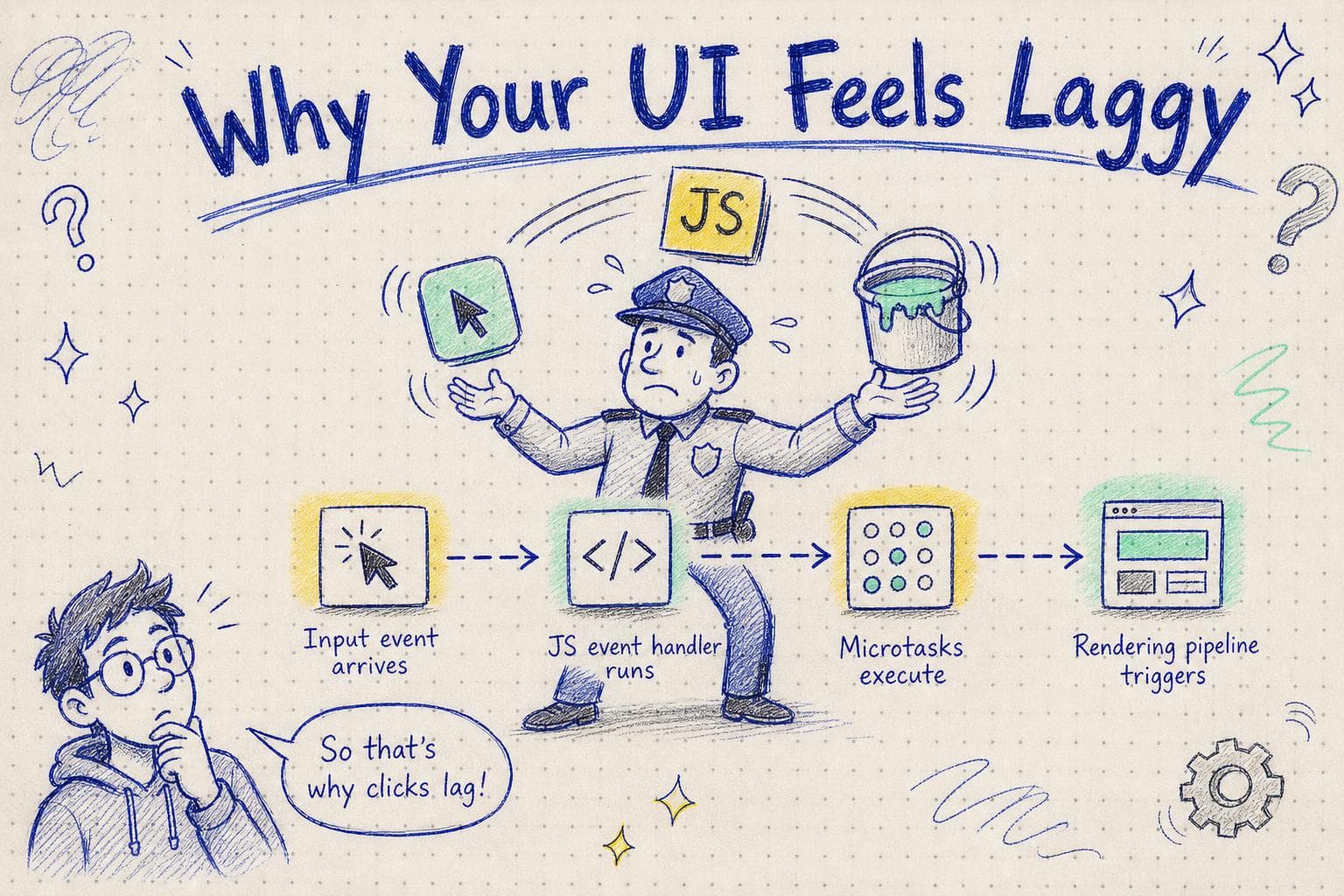
You’ve probably stared at a page that feels sluggish despite your JavaScript looking fine , no infinite loops, no heavy computation. You wonder, why is my UI still not keeping up with my inputs? You profile, and your JS tasks are mostly short. It’s a familiar frustration.
Turns out, the browser’s event loop isn’t just a simple queue that runs JavaScript callbacks one after another. It’s a carefully orchestrated machine juggling multiple kinds of work: input events, JavaScript execution, style recalculations, layout, paint, and compositing. Understanding how these phases interplay can help you reason about UI responsiveness beyond just optimizing JS.
More Than Just JS: The Browser’s Event Loop Phases
We usually think of the event loop as running JavaScript callbacks serially, like processing event listeners or timers. But browsers extend this model with multiple task sources and microtasks queues and insert rendering work in the loop. Here’s a simplified breakdown:
- Macrotasks: These include your user event callbacks (
click,keydown), timers (setTimeout), network callbacks, etc. - Microtasks: Promises and other microtasks run immediately after the currently executing macrotask.
- Rendering phases: After macrotasks (and their microtasks) complete, the browser may perform style recalculation, layout, paint, and compositing before the next macrotask.
What’s key here is that rendering tasks don’t happen during your JavaScript execution but between macrotasks.
Input Events and Rendering Have Their Own Priorities
Input events like keyboard, mouse, or touch are scheduled as macrotasks. But browsers try to prioritize input responsiveness by sometimes interrupting or delaying low-priority tasks.
Here’s what happens when you interact:
- Input event arrives: The browser queues an input event macrotask.
- JS runs event listener: Your handler runs, possibly updating state or DOM.
- Microtasks run: Promise callbacks or other microtasks invoked during this macrotask execute.
- Rendering pipeline runs: The browser checks if styles/layout/paint need updates and runs those.
This division means that long-running JavaScript blocks block the rendering pipeline from running. If a macrotask runs for 200ms, rendering waits until it finishes, causing visible jank.
But there’s more nuance.
Rendering Can Be Scheduled Across Multiple Frames
Rendering isn’t a single monolithic phase. It breaks down roughly into:
- Style recalculation: Determines computed styles for elements.
- Layout: Computes geometry and box sizes/positions.
- Paint: Fills pixels into layers.
- Compositing: Combines painted layers into the final framebuffer.
Each step can be expensive, so browsers try to optimize by skipping or batching work when possible.
For example, if you only update a transform property on an element, the browser can skip style/layout and jump straight to compositing layers, which is much faster.
Also, the browser can split rendering work across multiple animation frames, especially on complex pages, to keep the main thread responsive.
How This Affects Your JS Timing and Input Responsiveness
Because rendering happens between macrotasks, your JavaScript can delay rendering if it hogs the main thread. But input events themselves are just another macrotask and can get queued behind others.
If you have:
- A long-running JS task, input events wait in the event queue.
- Many microtasks chained after a macrotask, delaying when rendering happens.
- Frequent style or layout thrashing inside your JS, causing multiple rendering invalidations and forcing repeated style/layout recalculations.
These patterns add up to slow or jittery UI.
Concrete Example: Why Your Button Click Might Feel Laggy
Imagine you have a button with a click handler that updates the UI and kicks off a bunch of Promises:
button.addEventListener('click', () => {
  // Update DOM
  content.textContent = 'Loading...';

  // Heavy computation
  for (let i = 0; i < 1e8; i++) {}

  // Promise chain
  Promise.resolve().then(() => {
    // Another DOM update
    content.textContent = 'Done!';
  });
});
Here’s what happens under the hood:
- The click event macrotask runs, blocking the main thread with the heavy loop.
- The first DOM update (
Loading...) happens in JS but won’t show visually until rendering runs. - Microtasks from the Promise run after the macrotask, updating the DOM again.
- Rendering happens only after all this completes.
Result: the user sees no intermediate state. The button click feels unresponsive because rendering was blocked until after all JS finished.
How Browsers Try to Prioritize Input Responsiveness
Modern browsers use heuristics and scheduling tricks:
- Task Prioritization: Input events get higher priority in the event queue.
- Interruptible Rendering: Some browsers can interrupt long rendering or JS tasks to process new input.
- rAF and setTimeout 0 tricks: Developers sometimes use
requestAnimationFrameor short timers to break up heavy tasks.
But the fundamental limitation remains: Anything blocking the main thread blocks rendering and input processing.
What You Can Take Away
- Think of JS tasks as blocking windows that stall rendering and input. Keep them short.
- Avoid style/layout thrashing inside event handlers; batch DOM writes and reads separately.
- Use
requestAnimationFrameto schedule visual updates aligned with rendering. - Profile not just JS runtime but also rendering phases and input event delays.
- Remember the event loop is a shared pipeline for multiple work types, not just JS callbacks.
Understanding this event loop choreography helps you debug why your UI feels laggy even when your JS looks innocent. The browser is juggling input, rendering, and JS in a delicate balance, sometimes you have to help it keep that balance smooth.
Now, when your button feels slow or your animations stutter, you have a clearer mental model of what’s going on under the hood and how to fix it.