The DOM’s Repaint and Reflow Pipeline: How Browsers Optimize Visual Updates
Understanding the invisible steps browsers take to update your UI smoothly—and why your animations sometimes hitch
November 5, 2026
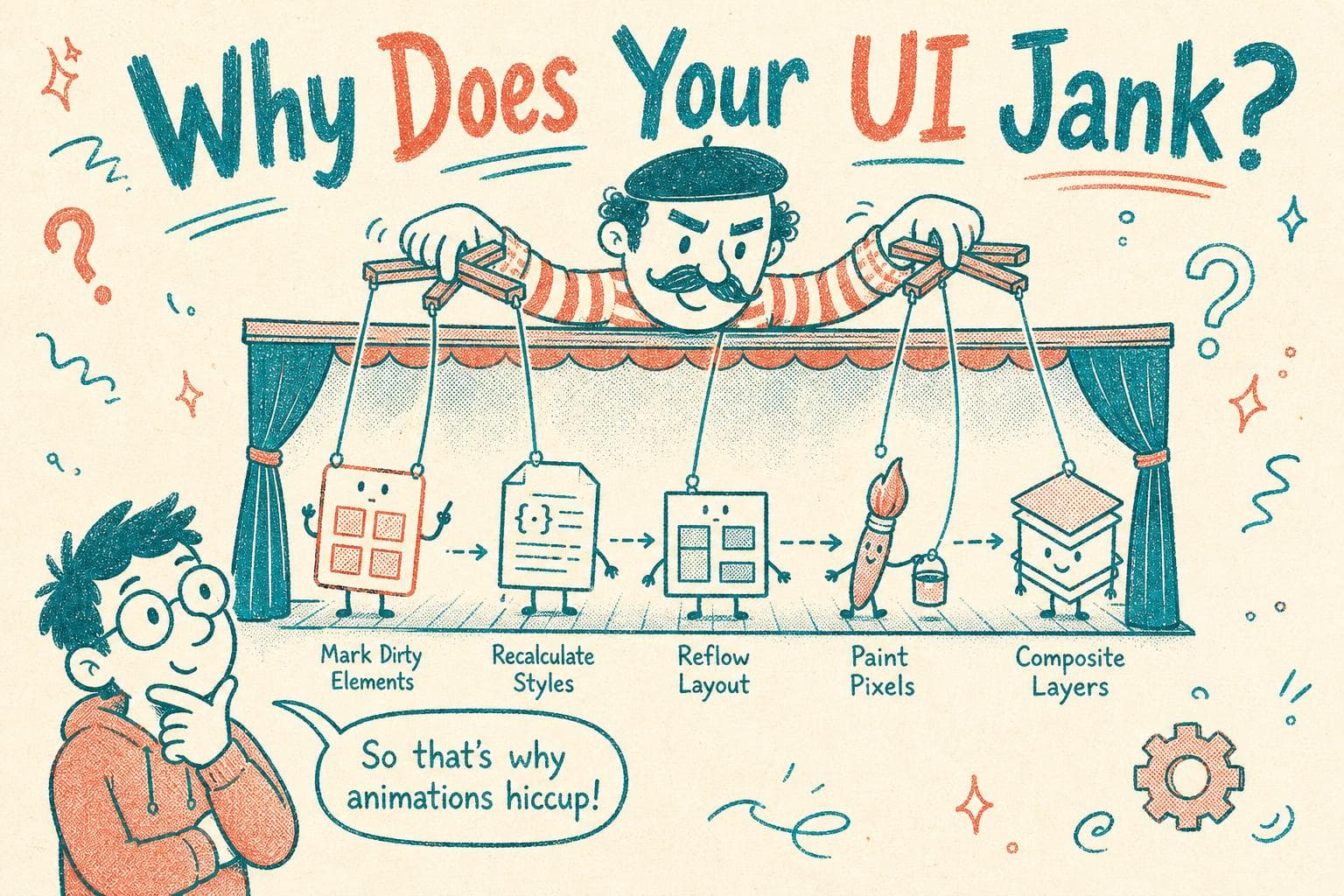
You’ve just tweaked your CSS or updated some DOM nodes, expecting the page to snap instantly to the new styles or layout. Instead, you see a flicker, a delay, or worse, a janky animation that ruins the user experience.
Why does this happen? What exactly goes on inside the browser when your code changes the DOM?
I spent hours debugging a sluggish animation where every frame dropped, and the culprit was a forced reflow that no one expected. That deep dive into the browser’s rendering pipeline revealed a surprisingly complex but fascinating process that browsers use to repaint and reflow the page efficiently.
Let me walk you through what happens under the hood after you change the DOM, how browsers batch and optimize these updates, and why some DOM reads or writes can cause big performance hits.
The Moment You Change the DOM: What’s Next?
When you modify the DOM or CSSOM (like changing styles, adding elements, toggling classes), the browser doesn’t immediately repaint the screen. Instead, it marks parts of the page as "dirty", meaning they need to be updated.
This kicks off a multi-step pipeline:
- Style recalculation: The browser figures out the computed styles for elements affected by your changes.
- Layout (reflow): It recalculates positions and sizes of elements.
- Paint: The browser draws pixels for updated parts.
- Compositing: Layers are combined to produce the final screen image.
Each step depends on the previous, and browsers try to minimize how often and how much work happens in each.
Why Reflow (Layout) Is The Heaviest Step
When the browser does layout, it calculates where every visible element goes and how big it should be. This can cascade because changing one element’s size affects its children and siblings.
Imagine you change the width of a container, its children might shift, causing their layouts to recalc, and so on. That ripple effect is expensive.
A key insight: reading certain layout-related properties from the DOM, like offsetWidth, clientHeight, or getBoundingClientRect(), forces the browser to flush all pending layout work immediately.
This is called a forced synchronous reflow or layout thrashing if done repeatedly.
How Browsers Batch and Optimize These Steps
Browsers wait until your JavaScript finishes running or yields control before starting the pipeline. They batch multiple DOM changes together to avoid extra work.
For example, if you add a class, then modify a style, then read offsetHeight, the browser tries to combine steps so the layout recalculates only once.
Modern browsers also use layered rendering , they split the page into layers that can be repainted or composited independently. For instance, a fixed-position header might be its own layer.
This helps avoid repainting the whole page when only a small part changes.
Practical Example: Avoiding Forced Reflows
Suppose you run this JavaScript:
const box = document.getElementById('box');
box.style.width = '200px';
const height = box.offsetHeight;
box.style.width = '300px';
Here, reading offsetHeight forces layout after the first style change before the second style change applies. This means the browser does layout twice, slowing things down.
Better to batch writes and reads separately:
const box = document.getElementById('box');
box.style.width = '200px';
box.style.width = '300px';
const height = box.offsetHeight;
Now, layout runs once after all style writes.
Debugging Forced Reflows and Janky Animations
I once debugged a slow animation where CSS transitions stuttered. Using Chrome DevTools’ Performance tab, I spotted many small but repeated layout recalculations triggered by JavaScript reading layout properties inside a tight loop.
The fix was to avoid reading layout properties inside animation frames and instead cache values or refactor to only write styles.
Tools like the Performance panel’s "Layout" and "Paint" event markers help identify where reflows happen.
What Triggers Repaint Without Reflow?
Not all visual updates cause layout. For example, changing background-color or opacity triggers repaint but not layout.
Paint is cheaper than layout but still costs GPU or CPU time, so minimizing repaints helps smooth performance.
A Quick Recap of the Pipeline
- Style recalculation: Compute styles for modified elements.
- Layout (reflow): Calculate geometry and positions.
- Paint: Fill pixels for changed visuals.
- Compositing: Assemble layers into final output.
You want to batch DOM writes and reads so the browser can do this pipeline as few times as possible.
When You Can’t Avoid Reflows
Sometimes, your UI logic demands reading layout info dynamically. For example, measuring text size or positioning popups.
In those cases:
- Cache measurements if inputs don’t change frequently.
- Use
requestAnimationFrameto schedule reads and writes separately. - Consider CSS features like
will-changeto hint the browser about upcoming changes.
Wrapping Up
The browser’s repaint and reflow pipeline is a silent partner in your UI’s performance. Understanding this process helps you avoid subtle pitfalls that cause jank and wasted CPU time.
Next time your animation feels rough or your page seems slow after DOM changes, remember to check for forced reflows lurking in your code.
And if you want to dig deeper, poke around with DevTools, watch the layout events, and experiment with batching your DOM changes.
Once you get this, your UIs will feel smoother, your debugging faster, and your users happier.