How Screen Readers Interpret and Expose Complex ARIA Roles in Dynamic Web Apps
Why your ARIA role changes sometimes don’t show up in screen readers—and what’s really going on behind the scenes
October 29, 2026
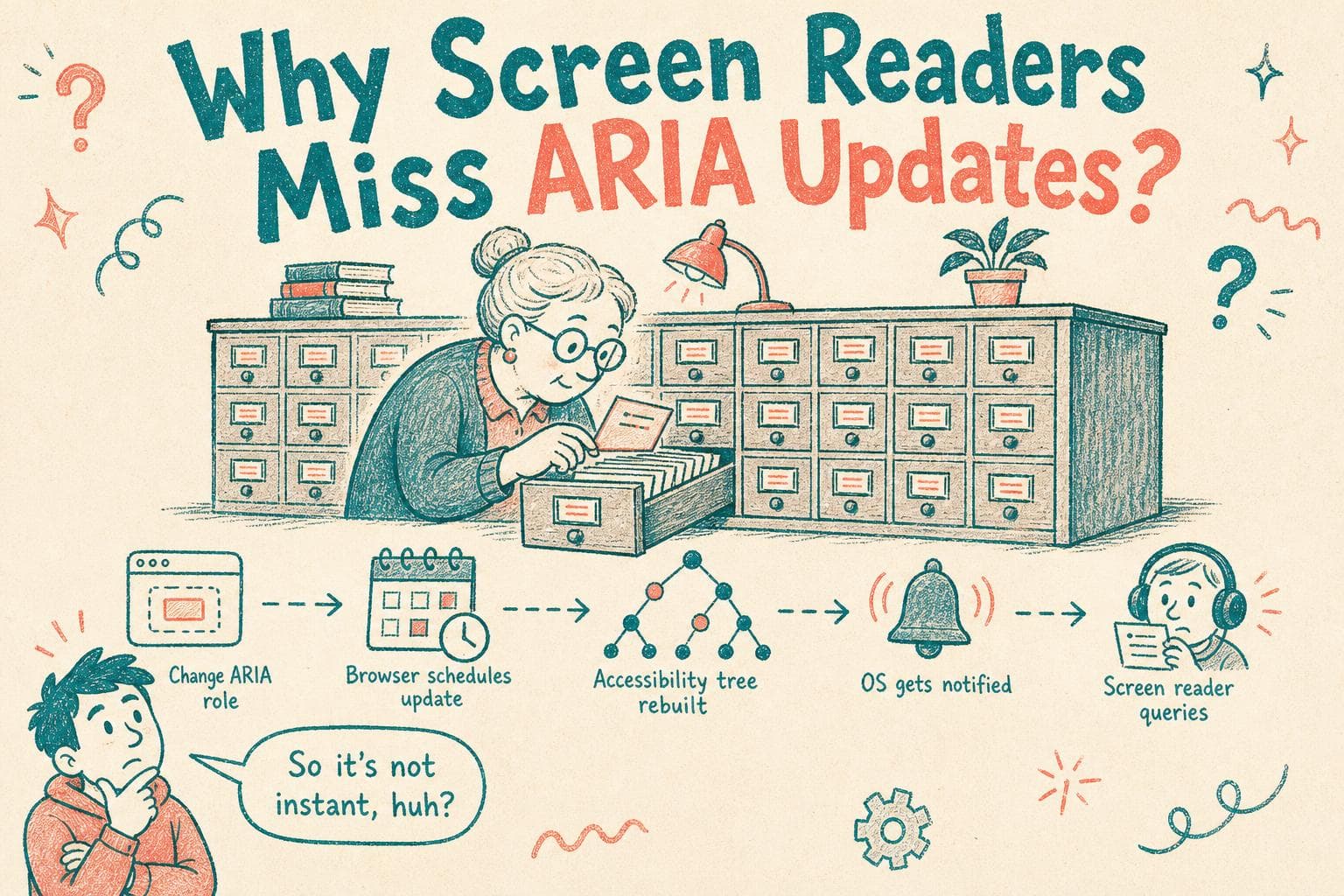
Ever changed an ARIA role dynamically in your app and wondered why the screen reader didn’t announce the update, or worse, kept exposing stale semantics?
I hit this recently while working on a complex widget that updated roles based on user interaction. The UI updated visually, but the screen reader kept reading the old role or ignored the change altogether. It threw me for a loop because I assumed changing the role attribute should be enough.
Turns out, there’s a whole process under the hood that controls how ARIA roles get reflected in the accessibility tree and how screen readers learn about those changes. Spoiler: It’s not just about flipping attributes on elements.
The Accessibility Tree Is Not the DOM
You know how your browser keeps the DOM updated with all your changes? Well, assistive technologies like screen readers don’t use the DOM directly. They rely on a separate structure called the accessibility tree, which is built from the DOM but filtered and enriched to represent the UI semantics relevant to users with disabilities.
When you add or change ARIA roles, properties, or states, the browser updates this accessibility tree.
But here’s the catch: the tree update is an internal process that happens asynchronously and separately from your DOM updates.
Changing ARIA Roles Dynamically Doesn’t Always Trigger Immediate Accessibility Tree Updates
When you change an element’s role attribute dynamically, browsers don’t instantly rebuild the accessibility tree for that element. Instead, they batch updates or wait for an idle moment to reconcile the tree.
Why? Because regenerating the accessibility tree is expensive. Doing it for every tiny DOM change would kill performance.
This means a dynamic ARIA role change might take a few moments to propagate into the accessibility tree. During that delay, the screen reader still sees the old role.
Live Regions and Focus Changes Are Your Best Friends Here
Screen readers rely heavily on notifications from the OS about changes in the accessibility tree to know what to read out. Simply changing a role attribute often doesn’t generate a notification on its own.
You need to either:
- Update a live region (an ARIA attribute like
aria-live) to announce changes. - Move keyboard focus to the updated element.
Both actions trigger the screen reader to query the accessibility tree and read out the new semantics.
Without these, the screen reader might never realize the semantics changed, especially if the element is off-screen or not focused.
What Happens Under the Hood When ARIA Roles Change?
- DOM attribute mutation: Your JavaScript sets or removes an ARIA role.
- Browser schedules accessibility tree update: Internally, the browser marks the accessibility tree node dirty.
- Asynchronous tree reconciliation: At an idle time, the browser recalculates the accessibility node for that element.
- OS notification: The updated accessibility information is sent to the OS accessibility APIs.
- Screen reader query: The screen reader fetches the updated accessibility tree snapshot.
- User feedback: If the screen reader is focused on the element or a live region was updated, it announces the changes.
If any of these steps lag or don’t happen (or if the screen reader doesn’t poll for changes), you get stale or missing announcements.
Browser and Screen Reader Sync Is a Delicate Dance
Different browsers and screen readers handle the timing and syncing differently. For example:
- Chrome with NVDA polls the accessibility tree frequently and tends to pick up changes faster.
- Safari with VoiceOver relies more on OS notifications and focus changes.
- Firefox’s support can be more variable depending on platform.
This makes debugging dynamic ARIA updates tricky because behavior varies by environment.
Practical Tips to Make Dynamic ARIA Roles Work Well
- Trigger focus on the element after role change: Moving focus causes screen readers to reread the element, revealing updated semantics.
- Use ARIA live regions to announce role or state changes: For example, update an
aria-live="polite"container with a message describing the new role or UI state. - Avoid toggling roles too rapidly or frequently: Excessive changes can overwhelm the browser and screen reader.
- Test on multiple browser/screen reader combos: Behavior differs, so verify your dynamic ARIA updates don’t get lost.
- Consider role inheritance and conflicts: Some roles override others, and some ARIA attributes only work with specific roles.
Debugging Accessibility Tree Updates
Use accessibility inspection tools like Chrome DevTools Accessibility pane or VoiceOver’s Accessibility Inspector to watch the accessibility tree in real time.
Change roles dynamically and see if the accessibility node updates accordingly.
If it doesn’t, the browser might be batching updates or ignoring changes due to invalid ARIA combos.
You can also use the accessibility tab in Firefox Developer Tools to observe similar things.
When Nothing Seems to Work: Check ARIA Role Validity
Not all ARIA roles can be swapped on the fly without breaking the accessibility tree.
Some roles require specific DOM structures or attributes. Violating these can cause browsers to silently drop or fallback roles.
Make sure the roles you toggle are valid for the element type and the ARIA spec.
Final Thoughts
Dynamic ARIA role changes aren’t magic. They rely on asynchronous accessibility tree updates, OS notifications, and screen reader polling.
When your screen reader doesn’t reflect a role change immediately, it’s usually due to this update lag or missing triggers like focus or live region announcements.
Knowing this lets you design your accessibility updates more intentionally , by combining ARIA roles with focus management and live regions, you can make dynamic UIs truly accessible.
And the next time your screen reader ignores your hard-earned ARIA tweaks, you’ll have the insight to debug why, under the hood.