How AI-Driven UI Review Tools Parse and Flag Semantic Inconsistencies
Inside the mechanisms that help AI spot mismatched components and UI mismatches beyond pixels
November 12, 2026
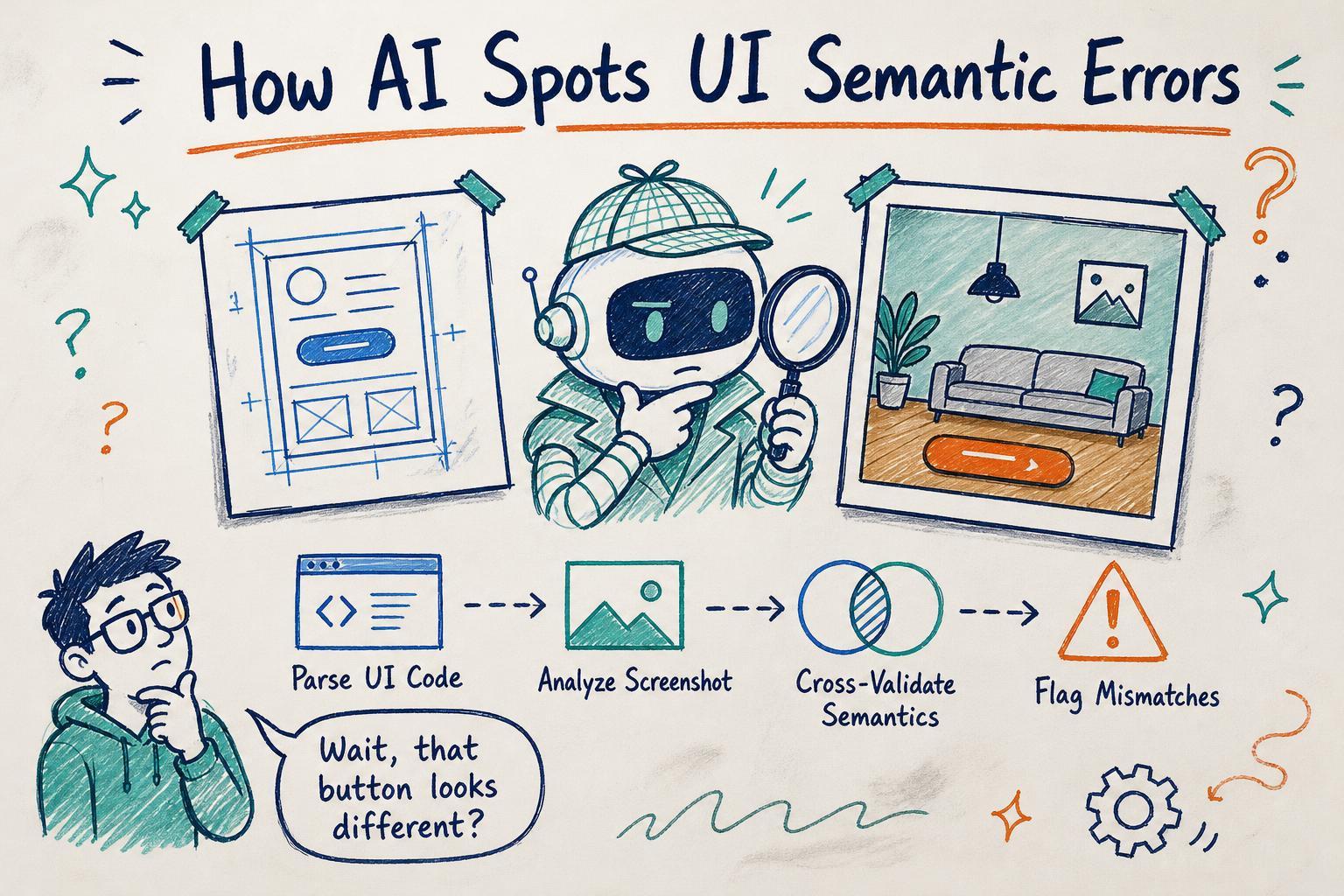
You ever submitted a UI update and run it through an AI-powered review tool, only to get back a laundry list of flagged semantic mismatches? Like the AI insists that your primary button is actually a secondary one, or that a dropdown label doesn’t match its expected role, even though to your eyes everything looks fine?
That was me recently, staring at a report that questioned perfectly working UI components. It felt like the AI was nitpicking or hallucinating errors. But digging deeper, I realized these tools rely on some clever but imperfect mechanisms to parse and understand UI code and visuals.
Let’s walk through how these AI-driven UI review tools work under the hood, how they parse code and screenshots to detect semantic inconsistencies, what kinds of mismatches they can catch, and why false positives happen. If you build or use these tools, understanding their internals can help you trust and debug their feedback better.
The Starting Point: Why Semantic Inconsistencies Matter
Visual bugs are obvious, things look broken or misplaced. But semantic inconsistencies go deeper. They’re about the meaning of UI elements, not just their appearance.
For example:
- A primary action button styled like a secondary button
- A checkbox rendered as a toggle switch but labeled inconsistently
- A heading used inside a card where a subheading is expected
These subtle mismatches harm usability and accessibility but aren’t easy to catch with traditional visual regression tests.
AI review tools try to catch these by combining code analysis and screenshot understanding. But how?
Parsing UI Code: The Structural and Semantic Clues
The first step is parsing the UI code to get a detailed map of components and their roles. This goes beyond just looking at HTML tags or JSX elements. AI tools ingest the source code or component tree to form a semantic model.
Here’s what they look for:
- Component Types and Props: Recognizing that
<Button variant="primary" />means a primary button, or that<Dropdown label="Sort" />is a dropdown with a label. - Hierarchy and Nesting: Understanding how components are nested, e.g., a
Cardcontaining aHeadingand anImage. - Accessibility Attributes: Parsing ARIA roles, labels, and states that reveal semantic intent.
- Style Metadata: Sometimes CSS classes or style props hint at the component’s semantic role, like
btn-primary.
They often rely on heuristic rules or trained models to map these clues to expected semantics. For example, an AI might know that a Button with variant=primary should have a certain visual style and placement.
Screenshot Analysis: Bridging Pixels and Semantics
Code alone doesn’t tell the whole story. Developers can write code that looks right but renders differently due to CSS bugs, theme overrides, or responsive layouts.
AI review tools analyze screenshots to cross-validate the semantic model from code:
- Visual Component Detection: Using computer vision models to detect UI elements like buttons, inputs, text blocks.
- Text Recognition: OCR extracts visible labels, button texts, and headings.
- Style and Positioning Checks: Comparing expected styles from code metadata with actual rendered styles and positions.
For example, the AI might spot that a button rendered with a gray background contradicts the expected bright blue for a primary button.
Detecting Semantic Mismatches: The Core Algorithms
Once the AI has both the semantic model from code and the visual snapshot, it looks for mismatches:
- Component Role vs. Visual Role: Does the coded role of a component match its visual style? E.g., a button coded as
primarybut visually styled assecondary? - Label-Component Consistency: Does the visible label correspond to the expected component function?
- Hierarchy Violations: Are headings or sections nested correctly? For example, an
<h3>appearing before an<h2>might be flagged. - Accessibility Semantics: Are ARIA attributes consistent with visible roles and states?
These checks combine rule-based systems (e.g., "primary buttons must have blue background") and learned models that predict expected semantics from visuals and code context.
Why False Positives Happen and How to Tame Them
Despite these clever mechanisms, false positives are common. Here’s why:
- Theme and Style Variations: If your app’s theme customizes button colors differently, hardcoded style expectations can misfire.
- Dynamic Content and State: AI tools snapshot a single state, missing that a button’s style changes on hover or after interaction.
- Custom Components or Wrappers: If you wrap UI primitives in custom components with unconventional props, the AI’s semantic mapping can get confused.
- OCR and Visual Detection Errors: Low-res screenshots or complex layouts can cause misreads.
To reduce false alarms:
- Feed the AI tool with your design tokens or style guides so it learns your theme.
- Provide multiple screenshots covering different UI states.
- Annotate custom components to help the semantic parser.
- Use feedback loops to teach the AI which flags are false positives.
Debugging AI Review Failures: A Practical Approach
When you get a report full of flagged mismatches, here’s how to dig in:
- Check the Semantic Model Output: Many tools expose the parsed component tree and semantic labels. Confirm if the AI’s understanding matches your intent.
- Compare Code and Visual Mismatch: Is the flagged mismatch a real inconsistency or a style/theme variation?
- Inspect OCR and Visual Detection: Some tools show bounding boxes or recognized text. Verify if OCR errors caused misclassification.
- Adjust Rules or Retrain Models: If your app uses custom components, configure or fine-tune the AI’s semantic intuition.
What I Learned From My Own AI UI Review Debugging
I realized that trusting AI reviews blindly is a recipe for frustration. Instead, treating the AI as a collaborator that needs guidance and context works better.
Also, these tools excel at catching hard-to-spot semantic issues, but only when they understand your code and style conventions well.
If you build or adopt AI UI review tools, invest in:
- Feeding them rich metadata about your components
- Covering multiple UI states
- Providing feedback on false positives
Otherwise, you’ll spend more time convincing the AI than fixing real bugs.
Ultimately, these tools are another step toward smarter UI quality checks, but they still need you to understand their inner workings to get the most value out of them.