Debugging AI Model Integration Latency in Frontend: Frontend Architecture and UX Tradeoffs
Why your AI-powered feature feels sluggish and how to fix it by rethinking frontend patterns and user experience
July 21, 2026
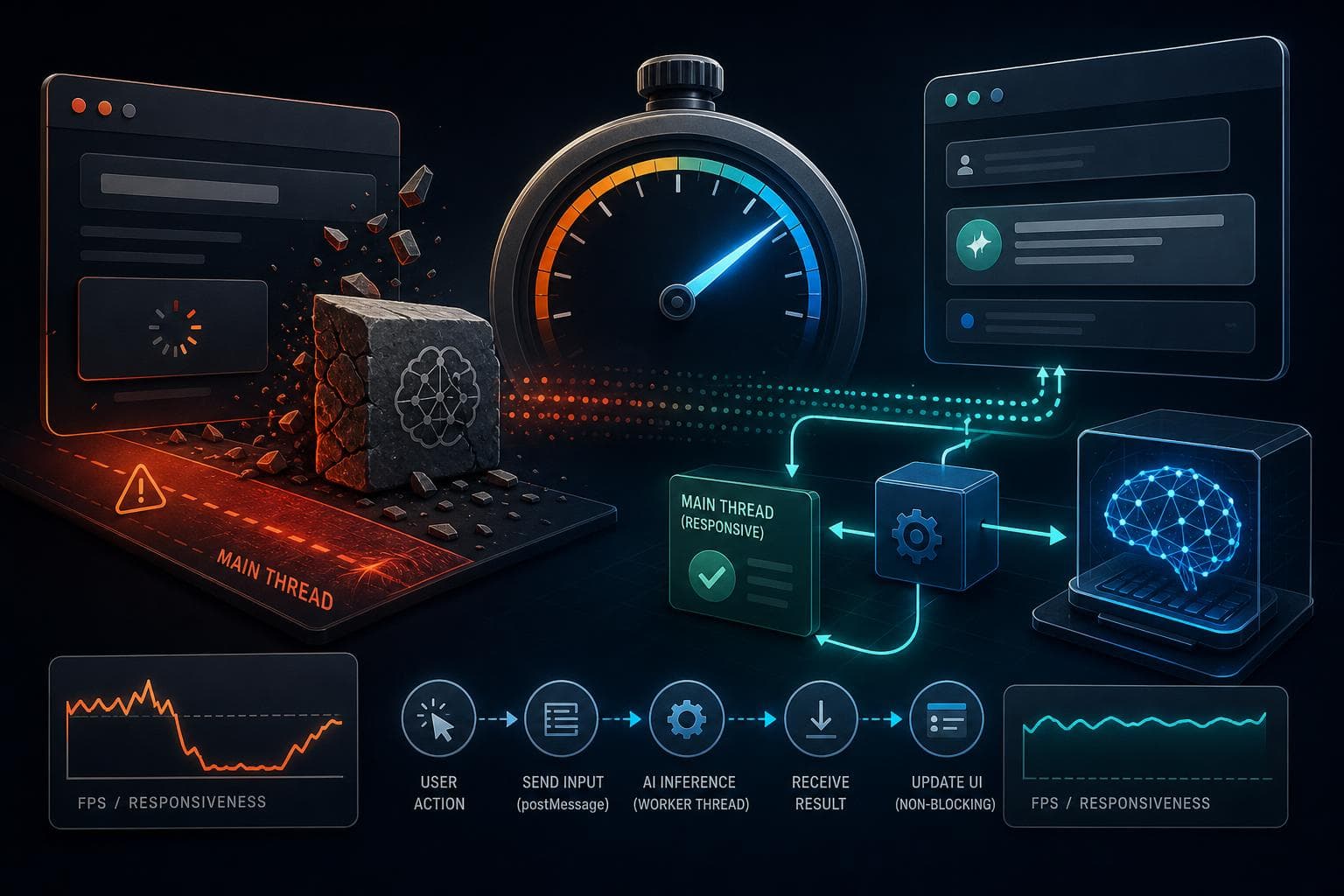
I remember the first time I dropped a client-side AI model into a web app. The feature was cool: users could upload text, get instant AI-powered insights, all running in the browser without server roundtrips.
But then the complaints started. "Why is the UI freezing when I type?" "The spinner stays forever!" "It feels slow and unresponsive."
I’d built fast React apps before, but this was different. The AI model was a beast: it hogged CPU, blocking the main thread. The loading states were clunky. And debugging the latency wasn’t straightforward.
If you’re integrating AI models directly in the frontend , whether with TensorFlow.js, ONNX.js, or WebAssembly-powered inference , you’ve probably faced this too. It’s not just about model size. It’s about how your frontend architecture manages loading, responsiveness, and UX feedback.
Let me walk you through what I learned debugging and fixing AI integration latency on the frontend.
The typical bottleneck: AI models block the main thread
When you run an AI model in the browser, it’s usually CPU-heavy and synchronous. Imagine this: a user triggers inference by clicking a button. Your JS calls the model’s predict function. The browser’s main thread is tied up for hundreds of milliseconds or even seconds.
During that time, the UI can’t respond , no animations, no input updates, no spinner updates. It feels frozen.
The naive approach is:
function handlePredict() {
  setLoading(true); // show spinner
  const result = model.predict(inputData); // blocks main thread
  setResult(result);
  setLoading(false);
}
But model.predict runs synchronously and hogs the main thread. React can’t update the spinner because it won’t get CPU cycles until predict finishes.
So your spinner either never shows or shows after the blocking finishes, confusing users.
Architecting for non-blocking AI inference
The key is to never block the main thread. If the model API is synchronous, you can’t just call it directly in a React event handler.
Here are some options:
1. Offload to Web Workers
Web Workers run in a separate thread. If you move model inference there, your main UI thread stays responsive.
This means:
- Create a worker script that loads the AI model.
- Use
postMessageto send input data and receive results asynchronously. - Update React state only when the worker responds.
Example:
// main thread
worker.postMessage({ input: inputData });
worker.onmessage = (e) => {
  setResult(e.data.result);
  setLoading(false);
};
setLoading(true);
This solves blocking but adds complexity: worker lifecycle, message serialization, and model loading duplication.
2. Break inference into chunks
Some models can run inference in smaller steps or batches. Using requestIdleCallback or scheduling microtasks lets you chunk work so the UI gets breathing room.
This is advanced and depends on model API support.
3. Lazy load and cache models
Loading a model can be slow too. Lazy load models only when needed to avoid upfront delays.
Cache the model instance so repeated inference calls don’t reload weights.
UX tradeoffs: Loading states and perceived performance
Showing a spinner during inference is basic but often broken if blocking happens synchronously.
Instead, consider:
- Optimistic UI: Show preliminary results or placeholders immediately.
- Progressive feedback: If inference takes >200ms, show a subtle loading indicator.
- Disable input: Prevent further input during inference to avoid confusion.
- Timeouts and cancelation: Allow users to cancel long-running inference.
For example, I replaced the spinner with a dimmed overlay and a "Thinking..." message that only appears if inference crosses 300ms. This avoids flicker for fast runs.
Debugging slow or blocking AI features
Here’s how I tracked down what was blocking:
- Chrome DevTools Performance tab: Record a profile during inference. Look for long tasks blocking the main thread.
- Flame charts: Identify the
model.predictcall and see how long it takes. - Check React DevTools: See if state updates or renders are delayed.
- Network tab: Confirm model weights aren’t repeatedly fetched.
After profiling, I found the model’s predict took 600ms on a typical input, blocking React’s render updates.
Putting it all together: a practical example
function AIComponent() {
  const [loading, setLoading] = React.useState(false);
  const [result, setResult] = React.useState(null);
  const workerRef = React.useRef(null);

  React.useEffect(() => {
    workerRef.current = new Worker('./aiWorker.js');
    workerRef.current.onmessage = (e) => {
      setResult(e.data.result);
      setLoading(false);
    };
    return () => workerRef.current.terminate();
  }, []);

  function handlePredict(inputData) {
    setLoading(true);
    workerRef.current.postMessage({ input: inputData });
  }

  return (
    <div>
      <Input onChange={handlePredict} disabled={loading} />
      {loading && <p>Running AI model...</p>}
      {result && <ResultDisplay data={result} />}
    </div>
  );
}
The worker script (aiWorker.js) handles loading the model once and runs inference asynchronously.
Final thoughts
Integrating AI models on the frontend isn’t plug-and-play. When your model hogs the main thread, the whole UX suffers.
Your best bet:
- Use Web Workers or similar off-main-thread mechanisms.
- Carefully design loading states to avoid flicker and freezing.
- Debug with profiling tools to spot blocking tasks.
- Lazy load and cache models to avoid repeated delays.
With these, your AI feature won’t just work, it’ll feel smooth and responsive , which is what your users really care about.