$0 and Friends: The DevTools Shortcuts You’re Missing
Chrome Devtools Edition
March 13, 2026
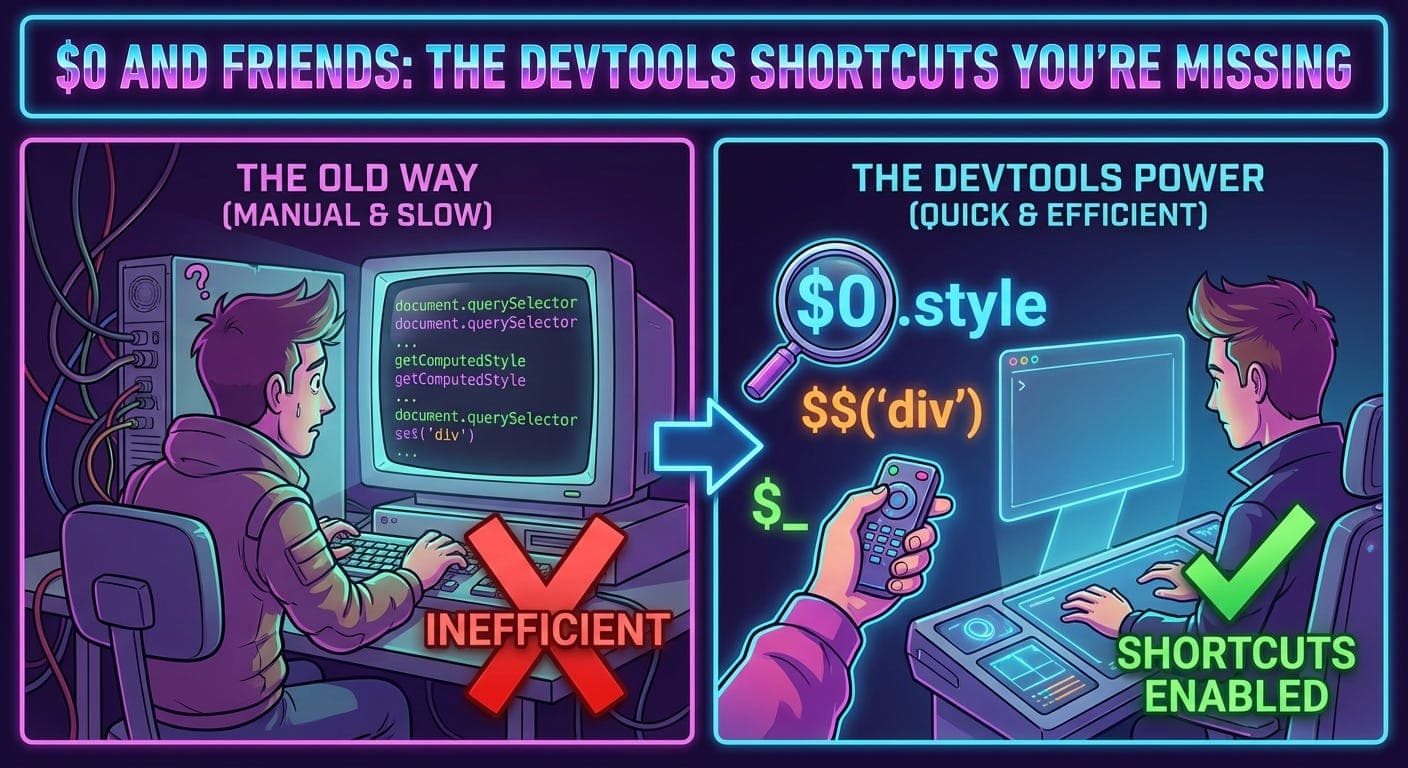
You’re debugging. You inspect an element. Now you want to test something on it in the console.
So you do this:
document.querySelector('.some-complicated-selector-you-have-to-type')
Or worse, you right-click, “Copy selector”, paste it into console. Every. Single. Time.
There’s a better way. And it’s been in DevTools for over a decade.
$0: The Element You Just Selected
Click an element in the Elements panel. Switch to Console. Type:
$0
That’s it. That’s the element you just selected.
$0.style.background = 'red'; // Change background\n$0.classList.add('debug'); // Add class\n$0.remove(); // Delete it\n$0.textContent = 'Changed!'; // Update text
No selectors. No copying. Just $0.
It gets better:
-
$1= previously selected element -
$2= element before that -
$3= element before that -
$4= element before that
You have a history of the last 5 elements you clicked.
$0 // Current selection\n$1 // Previous selection\n$2 // Selection before that\n// etc.
Testing interactions between elements? Switch between them instantly:
// Select parent element, then child\n$1.contains($0) // true\n\n// Compare two buttons you clicked\n$0.textContent === $1.textContent\n\n// Move element from one parent to another\n$1.appendChild($0)
This is way faster than typing selectors.
$$: querySelectorAll That Doesn’t Suck
Need all buttons on the page?
The old way:
Array.from(document.querySelectorAll('button'))
The shortcut:
$$('button')
It returns an actual array. Not a NodeList. An array.
$$('button').map(btn => btn.textContent)\n$$('img').filter(img => !img.alt)\n$$('a').forEach(link => console.log(link.href))
No Array.from(). No [...nodeList] spread. Just arrays.
Real examples from my debugging:
// Find all images without alt text\n$$('img').filter(img => !img.alt)\n\n// Get all external links\n$$('a').filter(a => a.hostname !== location.hostname)\n\n// List all form inputs with values\n$$('input').map(input => ({ \n name: input.name, \n value: input.value \n}))\n\n// Find empty elements\n$$('*').filter(el => !el.textContent.trim())\n\n// Count elements by tag\n$$('*').reduce((counts, el) => {\n counts[el.tagName] = (counts[el.tagName] || 0) + 1;\n return counts;\n}, {})
These would all be painful with querySelectorAll.
$: querySelector (Usually)
$('button') // First button on page\n$('.header') // First element with class="header"\n$('#app') // Element with id="app"
It’s just document.querySelector() but shorter.
The catch: If jQuery is loaded, $ is jQuery. So this only works on pages without jQuery.
But honestly? In 2026, most modern apps don’t use jQuery. So this works most places.
When jQuery is loaded:
$('button') // Returns jQuery object, not element
When jQuery isn’t loaded:
$('button') // Returns element
You can check:
typeof $ === 'function' && $.fn // jQuery is loaded\ntypeof $ === 'function' && !$.fn // DevTools $ is available
copy(): Get Stuff Out of Console
You computed something complex in console. Now you need it in your editor.
const data = $$('a').map(a => ({ \n text: a.textContent, \n url: a.href \n}));\n\ncopy(data)
The data is now in your clipboard as JSON. Paste it anywhere.
This is insanely useful for:
Extracting data from pages:
// All product prices on an e-commerce page\ncopy($$('.price').map(el => el.textContent))\n\n// Navigation structure\ncopy($$('nav a').map(a => ({ \n text: a.textContent, \n url: a.href \n})))\n\n// All images and their attributes\ncopy($$('img').map(img => ({\n src: img.src,\n alt: img.alt,\n width: img.width,\n height: img.height\n})))
Copying computed styles:
copy(getComputedStyle($0))
Copying localStorage:
copy(localStorage)
Exporting app state for debugging:
// In React DevTools\ncopy($r.state) // Copy component state\n\n// Or in console\ncopy(window.__REDUX_STATE__)
No more “take screenshot of console output” or manually transcribing data.
Combining Them All
This is where it gets powerful:
// Select an element in Elements panel, then:\n$$('img', $0) // All images inside selected element
$$() takes a second parameter: the root element to search from. Defaults to document, but you can pass anything.
Real debugging workflows:
// 1. Click a card component in Elements\n// 2. Find all links inside it\n$$('a', $0).map(a => a.href)\n\n// 3. Copy to clipboard\ncopy($$('a', $0).map(a => a.href))
Or backwards:
// 1. Find element in console\nconst form = $('form.signup');\n\n// 2. Select it in Elements panel\ninspect(form)
The inspect() function opens Elements panel and highlights the element.
inspect($('header')) // Jump to header in Elements\ninspect($$('button')[5]) // Jump to 6th button
Other DevTools Shortcuts Nobody Uses
While we’re here:
$x() - XPath queries:
$x('//button') // All buttons via XPath\n$x('//a[contains(@href, "github")]') // Links containing "github"
I’ve never used this. But it exists.
$_ - Last evaluated expression:
2 + 2\n// 4\n\n$_\n// 4\n\n$_ * 2\n// 8
Useful for “do that again” without retyping.
keys() and values():
keys($0.dataset) // All data- attributes\nvalues(localStorage) // All localStorage values
Shortcuts for Object.keys() and Object.values().
getEventListeners():
getEventListeners($0)
Shows all event listeners on an element. Incredibly useful for “why isn’t this click working?”
// See all click handlers\ngetEventListeners($0).click\n\n// See all event types registered\nObject.keys(getEventListeners($0))
monitorEvents() and unmonitorEvents():
monitorEvents($0, 'click') // Log every click on element\nmonitorEvents($0) // Log ALL events\n\nunmonitorEvents($0) // Stop logging
Better than adding addEventListener just to debug.
queryObjects():
queryObjects(Promise) // All Promise instances\nqueryObjects(Array) // All arrays\nqueryObjects(HTMLButtonElement) // All buttons
Find all instances of a constructor in memory. Great for memory leak debugging.
My Actual Debugging Workflow
Scenario: User reports button not working
-
Inspect the button (Elements panel)
-
Console:
getEventListeners($0) -
Check if click handler exists
-
Console:
monitorEvents($0, 'click') -
Click the button, watch events fire
-
Console:
$0.disabled(check if disabled) -
Console:
getComputedStyle($0).pointerEvents(check CSS)
No code changes. No console.logs. Just interactive debugging.
Scenario: Extract data from competitor’s site
-
Console:
$$('.product').map(p => ({ name: $('.title', p).textContent, price: $('.price', p).textContent })) -
Console:
copy(_)(copy last result) -
Paste into editor
-
Parse as needed
Scraping without writing a script.
Scenario: Why is this component re-rendering?
-
React DevTools: Select component
-
Console:
$r(selected React component) -
Console:
copy($r.props) -
Compare props between renders
Scenario: Find all memory leaks
// Take heap snapshot\n// Select an object\n// Console:\nqueryObjects($0.constructor)\n// See all instances of that type
The Ones That Break
$0 becomes null when:
-
You refresh the page
-
Element gets removed from DOM
-
You close DevTools
Always check if it exists:
$0 && $0.classList.add('debug')
$$ doesn’t work in:
-
Service workers
-
Web workers
-
Extensions (sometimes)
It’s a DevTools console feature only. Not available in production code.
copy() limitations:
-
Circular references become
[Circular] -
Functions don’t serialize
-
DOM nodes become
{}
It’s JSON.stringify under the hood with some magic.
Why Nobody Teaches This
These shortcuts don’t work in production code. They’re DevTools-only.
So tutorials and courses don’t cover them. You can’t put $0 in a React component.
But who cares? You’re not shipping DevTools shortcuts to users. You’re using them to debug faster.
The overlap between “features that work in production” and “features that speed up debugging” is smaller than you think.
Browser Differences
Chrome/Edge:
-
Everything works
-
Most mature implementation
Firefox:
-
$0,$1, etc. work -
$$()works -
$()works -
copy()works -
Everything basically works
Safari:
-
Most shortcuts work
-
copy()is buggy sometimes -
Generally less polished
The important ones ($0, $$) work everywhere.
My Take
I’ve been debugging JavaScript for 15 years. I learned about $0 in 2018. Five years too late.
Nobody teaches this. It’s not in MDN prominently. It’s not in tutorials. You stumble on it by accident or someone shows you.
But once you know it? Your debugging speed doubles.
No more typing document.querySelector() fifty times. No more copying selectors. No more Array.from(document.querySelectorAll()).
Just $0 and $$() and copy() and you’re done.
These shortcuts feel like cheating. They’re not in “real” JavaScript. They’re DevTools magic.
But that’s the point. DevTools exist to make debugging easier. Use the shortcuts.
Stop typing document.querySelector(). Start typing $0.
Try it right now:
-
Open DevTools on this page
-
Click any element in Elements panel
-
Switch to Console
-
Type:
$0.style.outline = '2px solid red' -
Watch the element get outlined
Then try:
$$('a').length // Count links\ncopy($$('a').map(a => a.href)) // Copy all URLs
You’ll never go back.
Reference card:
$0-$4 // Last 5 selected elements\n$('selector') // querySelector\n$$('selector') // querySelectorAll as array\ncopy(anything) // Copy to clipboard as JSON\ninspect(element) // Jump to element in Elements panel\ngetEventListeners(element) // Show all event listeners\nmonitorEvents(element, 'event') // Log events\nqueryObjects(Constructor) // Find all instances\n$_ // Last console result\nkeys(obj) // Object.keys shorthand\nvalues(obj) // Object.values shorthand
Print this. Or just remember $0 and $$. That’s 90% of the value.
Thanks for reading Under The Hood! Subscribe for free to receive new posts and support my work.